Totals and subtotals
Totals and subtotals add summary rows and columns to your visuals — giving you grand totals across the whole result, and subtotals at each level of a row or column hierarchy.
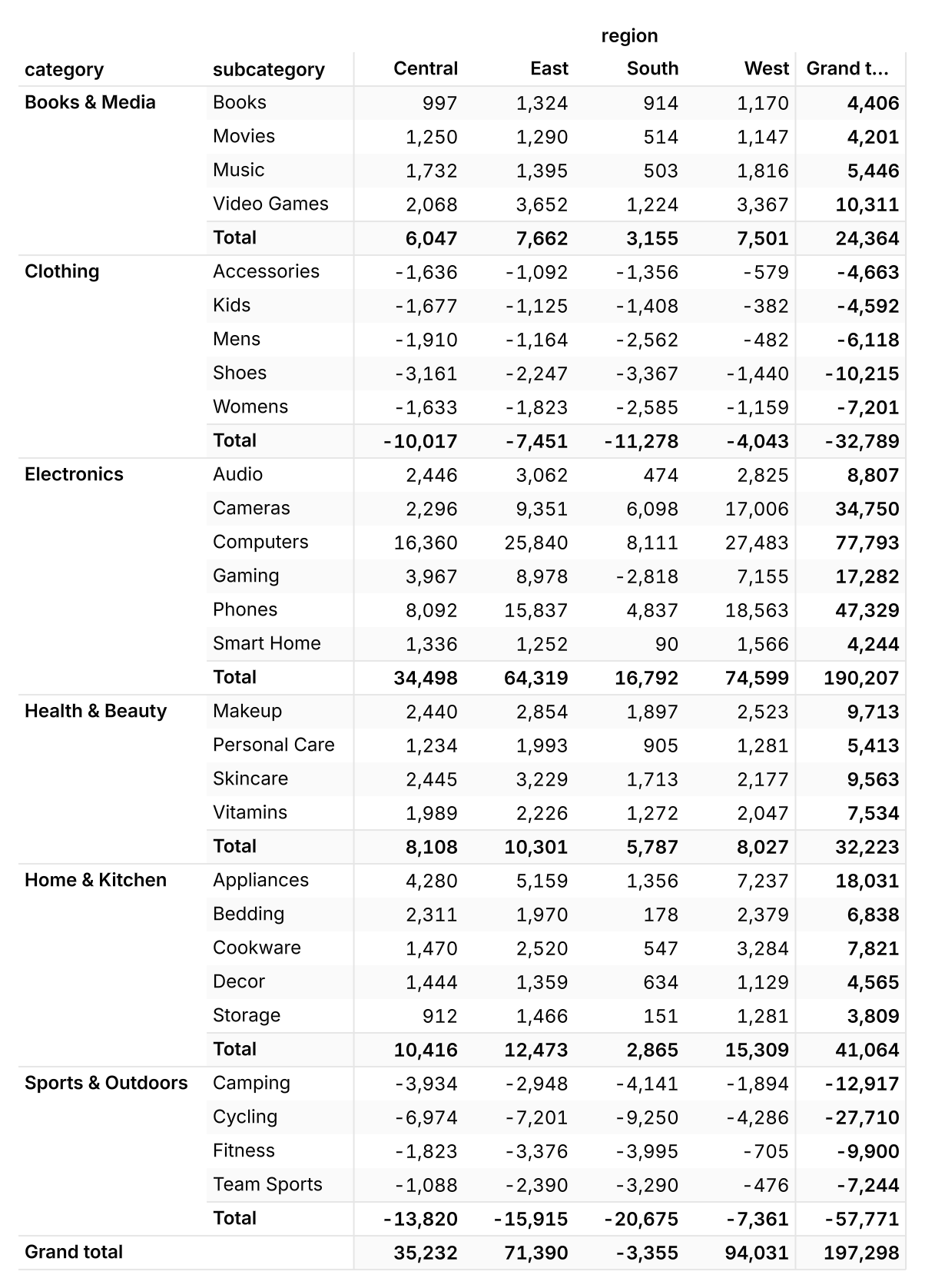
In Count, totals are recomputed from the underlying rows, not summed from the cells you can see. This means that non-additive aggregations such as averages, distinct counts, medians and percentiles produce a correct value at every level, not a misleading "sum of averages".
Getting started
Totals are configured per-visual from the right-hand sidebar of any supported visual cell.
To turn totals on or off:
- Select the visual cell.
- Open the Visual options panel in the right sidebar.
- Find the Totals control.
- Click the eye icon to show or hide all totals at once.
Options
The Totals control exposes four independent toggles. Rows and columns are configured separately, and grand totals are configured separately from subtotals.
- Rows → Grand Totals — a single column on the right aggregating across all columns.
- Rows → Totals — a subtotal column at every level above the leaf in a row hierarchy. For a hierarchy of Region → Country, you'll see a subtotal column for each region.
- Columns → Grand Totals — a single row at the bottom of the visual aggregating across all rows.
- Columns → Totals — the same behaviour on the column hierarchy.
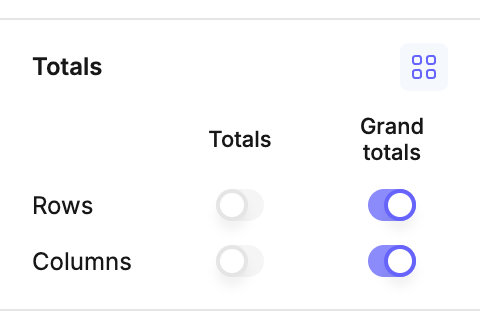
Subtotals only appear when the relevant axis has two or more hierarchy levels — there is nothing to "sub-total" when there is only one level on an axis.
How totals are calculated
Totals and subtotals are recomputed from the underlying rows, not aggregated from the visible data in the cell.
This distinction matters most for non-additive aggregations:
- Averages show the true mean across all rows, not the mean of the displayed means.
- Distinct counts show the distinct count over the broader rollup, not the sum of child distinct counts.
- Sums, counts, mins, maxes, medians and percentiles behave the same way — each total is computed over the expanded row set.
Because totals are computed from rows, they reflect the same calculation you defined for the leaf cells — including calculations you've authored yourself.
Number formatting (currency, percentage, decimals) is inherited from each column. Filters on the visual still apply, so totals always agree with the rows shown.
Supported visualisations
Totals are available on visuals where summary rows and columns are meaningful:
- Pivot tables
- Heatmaps
- All custom visuals
Visuals without a row/column structure (e.g. scatter plots, single-value KPI cards) do not show the Totals control.
Notes
- Subtotals require ≥ 2 hierarchy levels on the axis they're displayed on. If you've only added one field to the row or column axis, only grand totals are available for that axis.
- Totals follow the aggregation defined on the measure. To change how a total is computed, change the measure's aggregation — there is no separate "totals aggregation" setting.