Stamps
Stamps are a quick way to give visual feedback on a canvas. They work like sticky reactions, letting you show approval, flag something for review, or highlight areas for discussion.
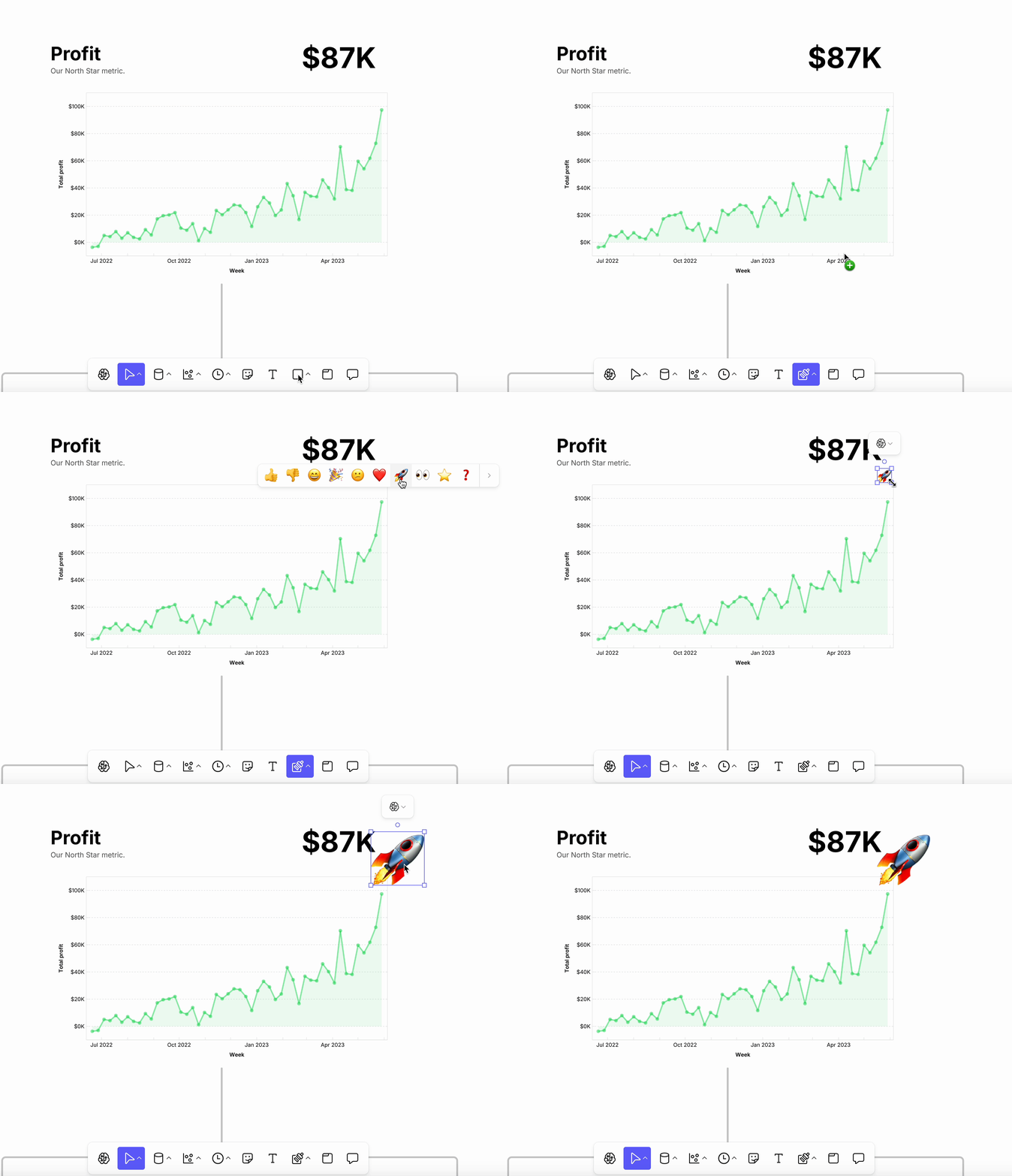
Inserting a stamp
- Select Stamp from the toolbar (shortcut: U).
- Choose an emoji and click on the canvas to place it.
- You can also place a stamp directly on top of another object (e.g. a chart or note).
Stamp options
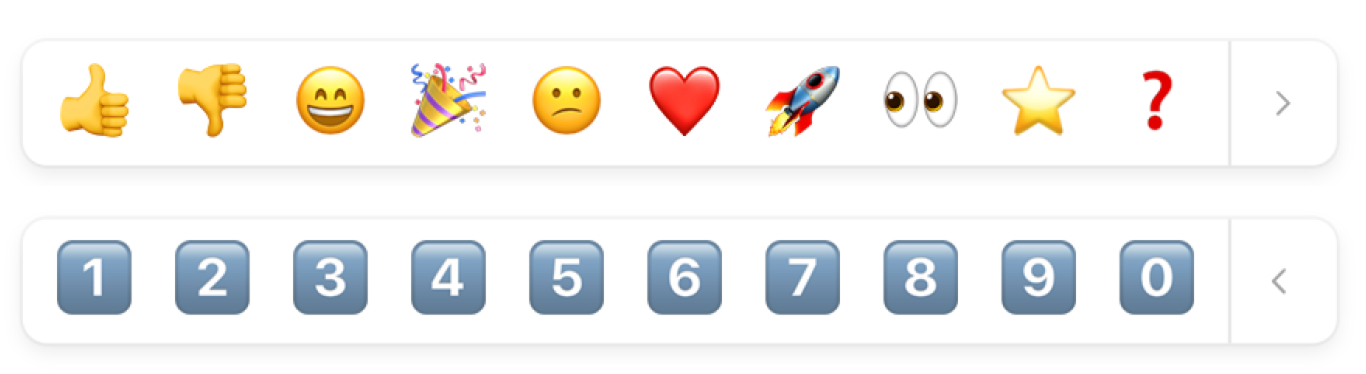
The available stamps and suggested use cases are:
- 👍 👎 — Quickly approve or disapprove an idea.
- 😀 😕 — Show positive or critical sentiment.
- 🎉 — Celebrate progress or wins.
- ❤️ — Highlight a favorite idea or important point.
- 🚀 — Mark items with high potential or priority.
- 👀 — Flag something for closer review.
- ⭐ — Call out something outstanding or recommended.
- ❓ — Raise a question or indicate uncertainty.
- 🔢 — Rank or vote on multiple options.
Resizing a stamp
- Click and drag corners to resize.
Removing a stamp
- Select the stamp and press Backspace/Delete.
For more emojis, use the system emoji menu (Cmd + Ctrl + Space on Mac, Win + . on Windows) when adding text to the canvas.