Okta
To connect Count to Okta, you'll need to be both an Okta admin and Count workspace owner, and have SSO enabled for your workspace.
Head to the Count workspace settings, select the SSO tab and select Okta - you'll need to provide an Authorization server issuer URI, Client ID, and Client secret.
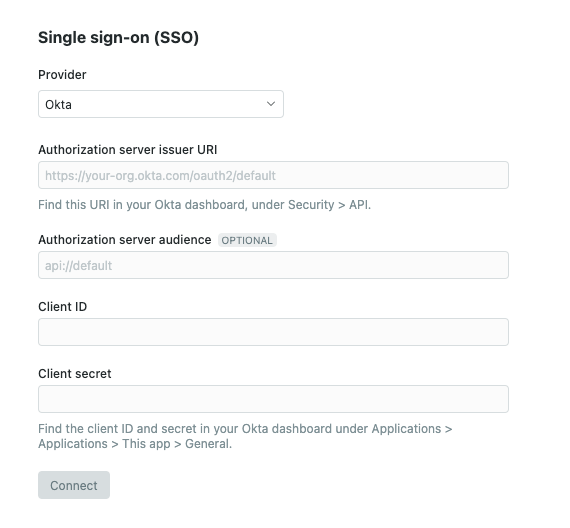
Create an Okta application
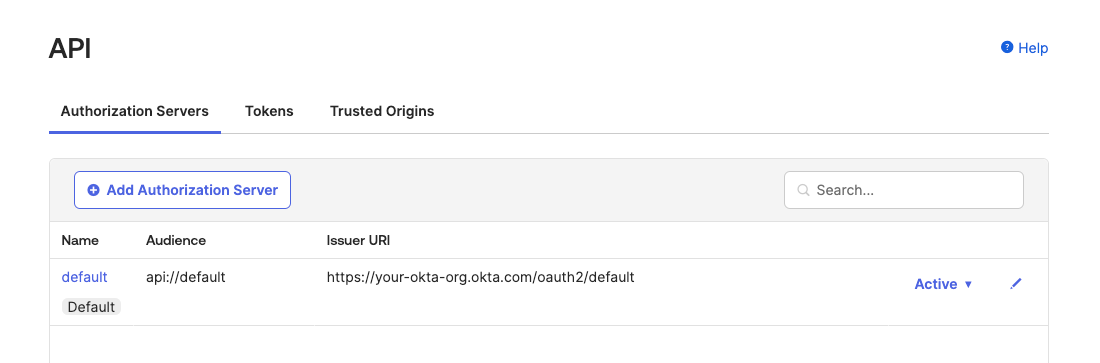
Authorization server issuer URI - this can be found from your list of authorization servers in the Okta admin dashboard. The URI is the value in the third column. You may also need the Audience value if it is different than the default value of api://default.
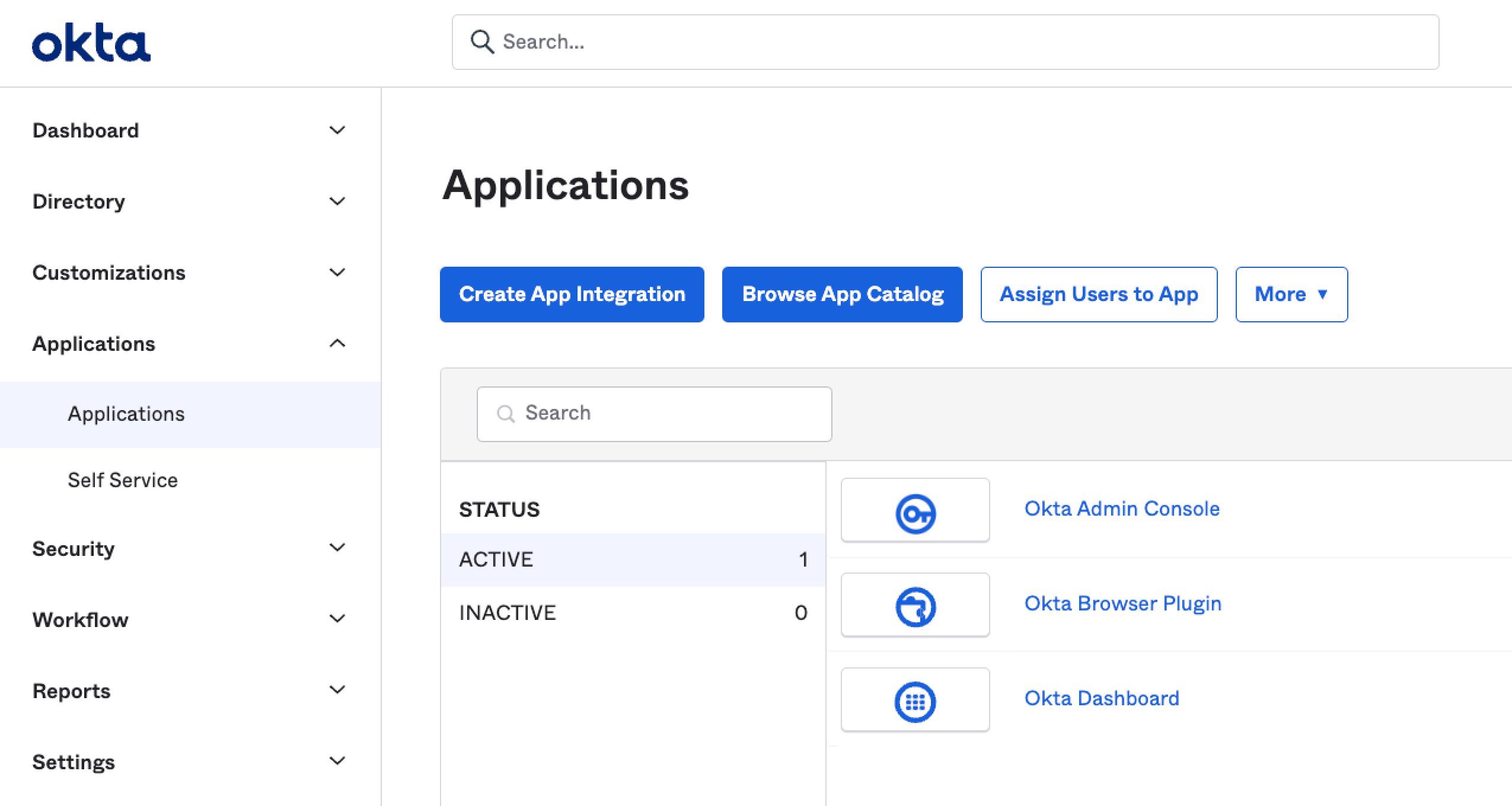
Next, you'll need to create an Okta app from the Applications section by clicking Create App Integration:
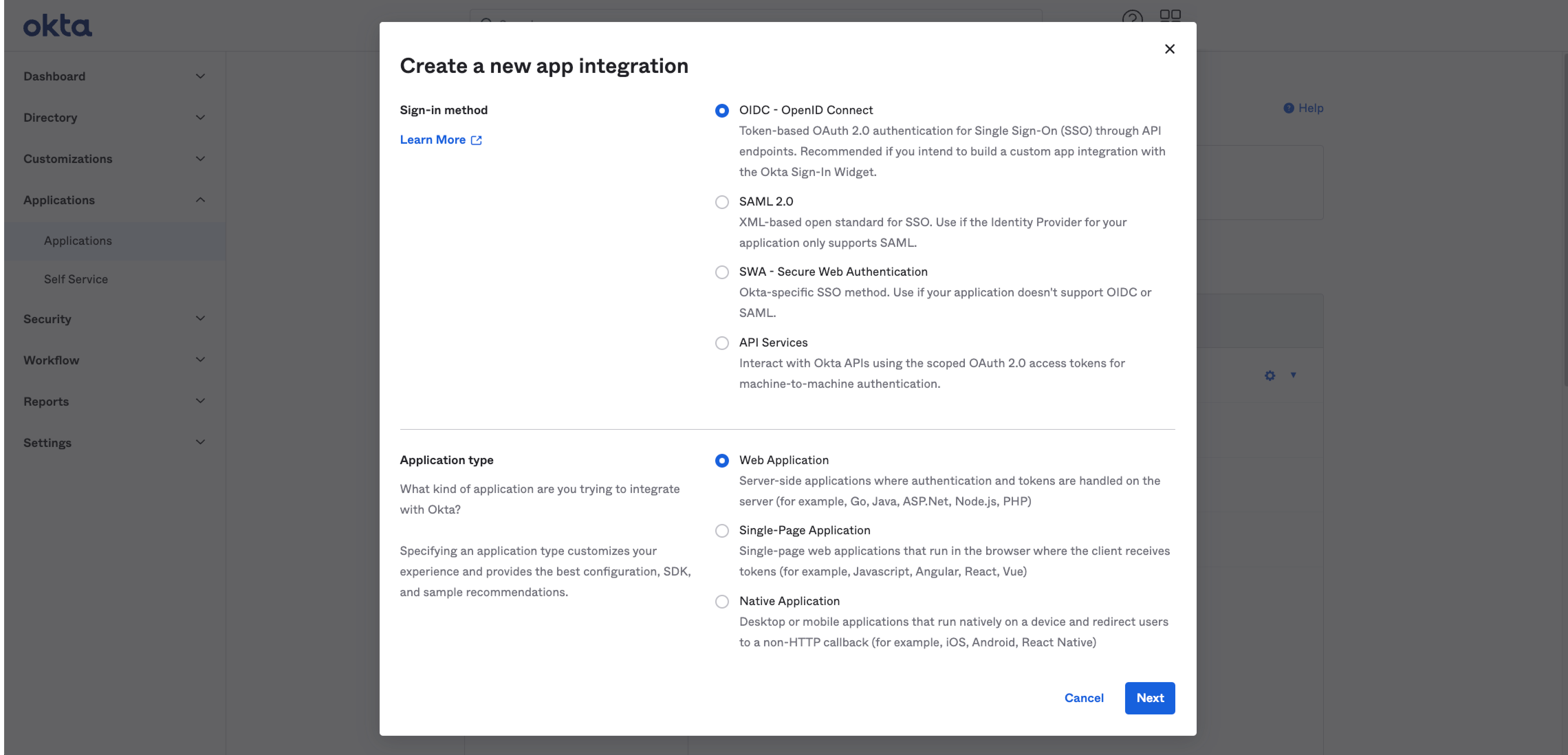
and then selecting OIDC and Web Application:
Finally, customise the following settings:
• Name - any memorable name
• Sign-in redirect URIs - https://app.count.co/sso-login or https://eu.count.co/sso-login
• Sign-out redirect URIs - https://app.count.co/sign-out or https://eu.count.co/sign-out
Once you're done, click Save and your application will be created. You'll then be able to copy the Client ID and Client secret and paste them into Count.
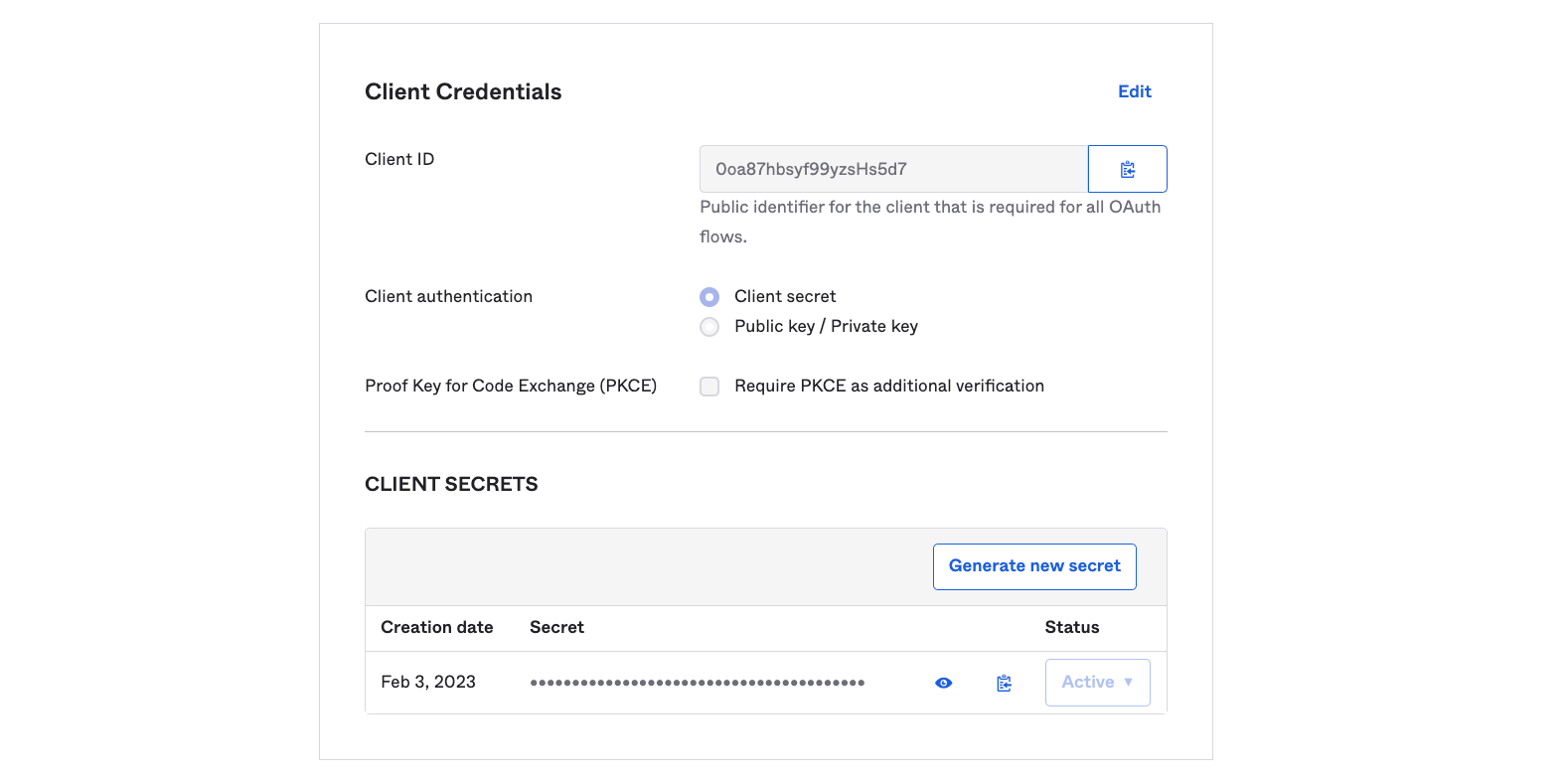
Access token subject
Ensure the sub claim for access tokens generated by the chosen authorisation server contain the user email address. To check what Okta-generated access tokens look like, go to Security -> API -> choose auth server -> Token Preview, and check the form of the token option.
Add an event hook (recommended)
Event hooks are an Okta feature that allows third-party services to subscribe to events happening within Okta.
Count supports the Okta User logout and User deactivated event hooks, and is able to sign users out of Count when they are signed out of or removed from Okta.
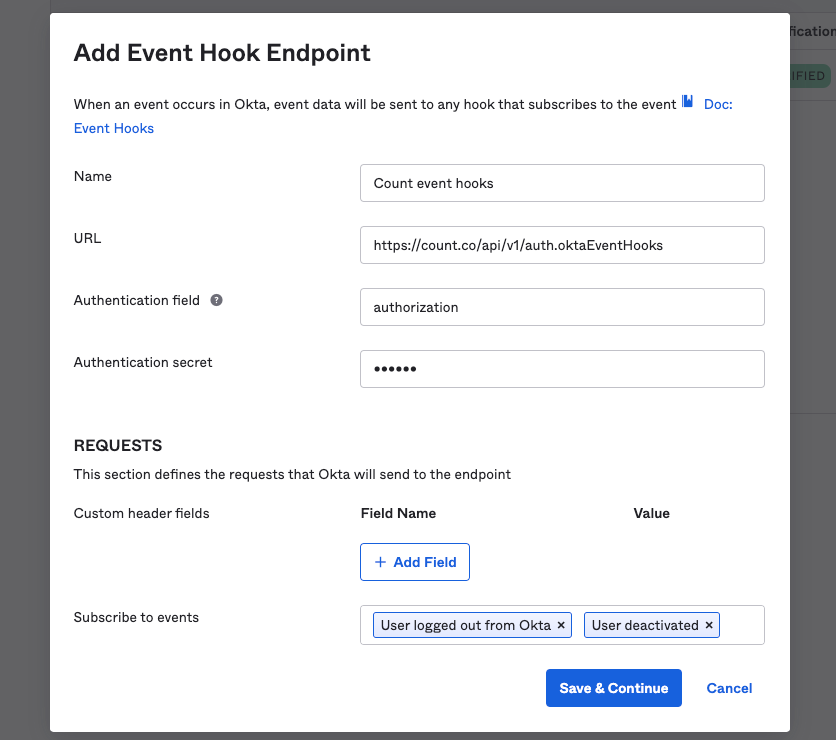
To add this event hook, head to Workflow, then Event Hooks in the Okta dashboard. Please then enter the following settings:
• Name - any memorable name
• URL - https://app.count.co/api/v1/auth.oktaEventHooks or https://eu.count.co/api/v1/auth.oktaEventHooks
• Authentication field - authorization
• Authentication secret - copy this value from the Count SSO settings tab. This secret confirms that a given event is related to your workspace.
• Subscribe to events - select User logged out from Okta and User deactivated (if sent to Count, all other events will have no effect).
Info
Once logged in, a user's session in Count may remain valid for up to an hour while their current tab is open. To revoke a user's access immediately, also remove them from the Count workspace in the members tab.