ClickHouse
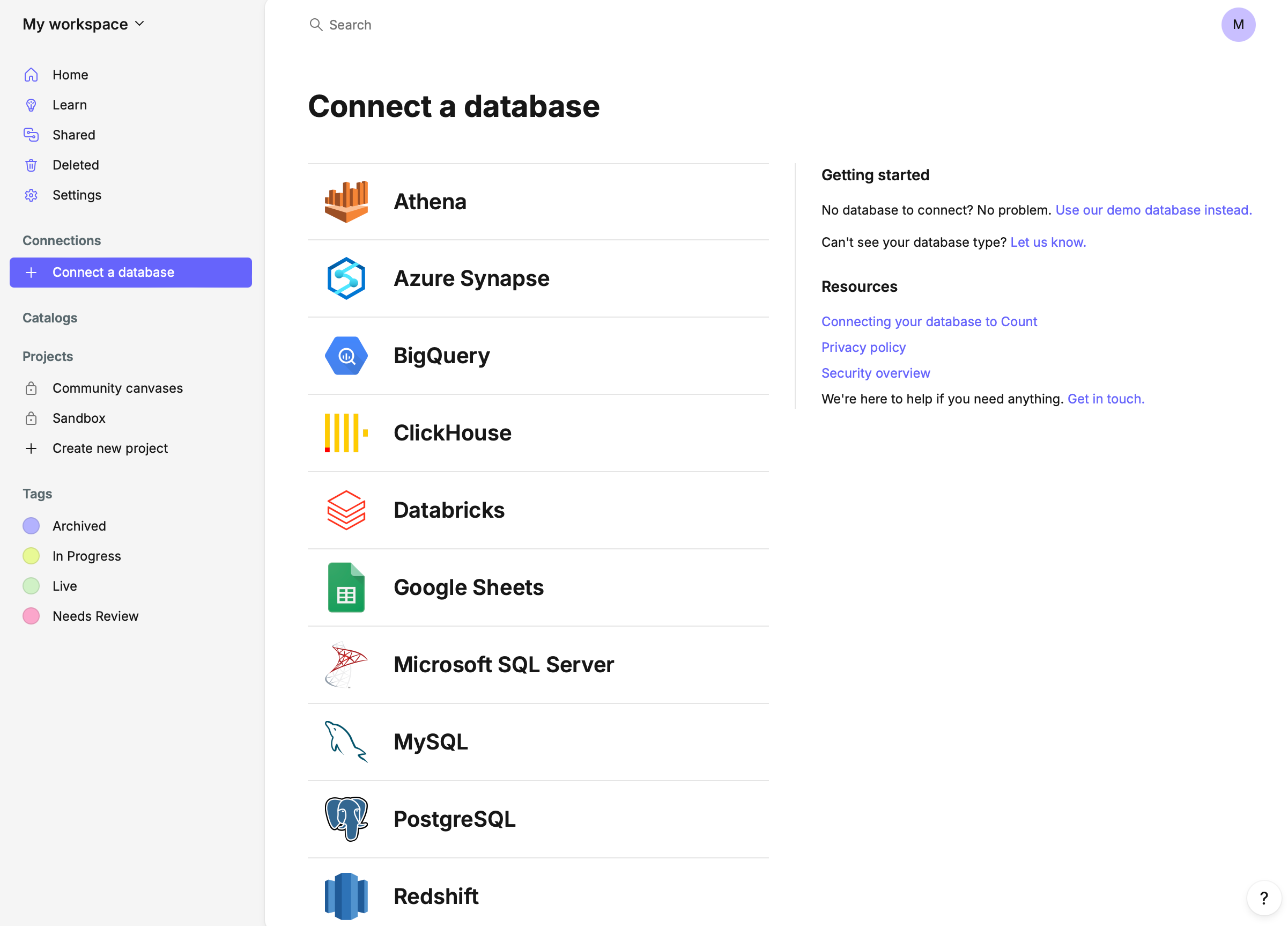
Click "Connect a database"
Enter your connection details
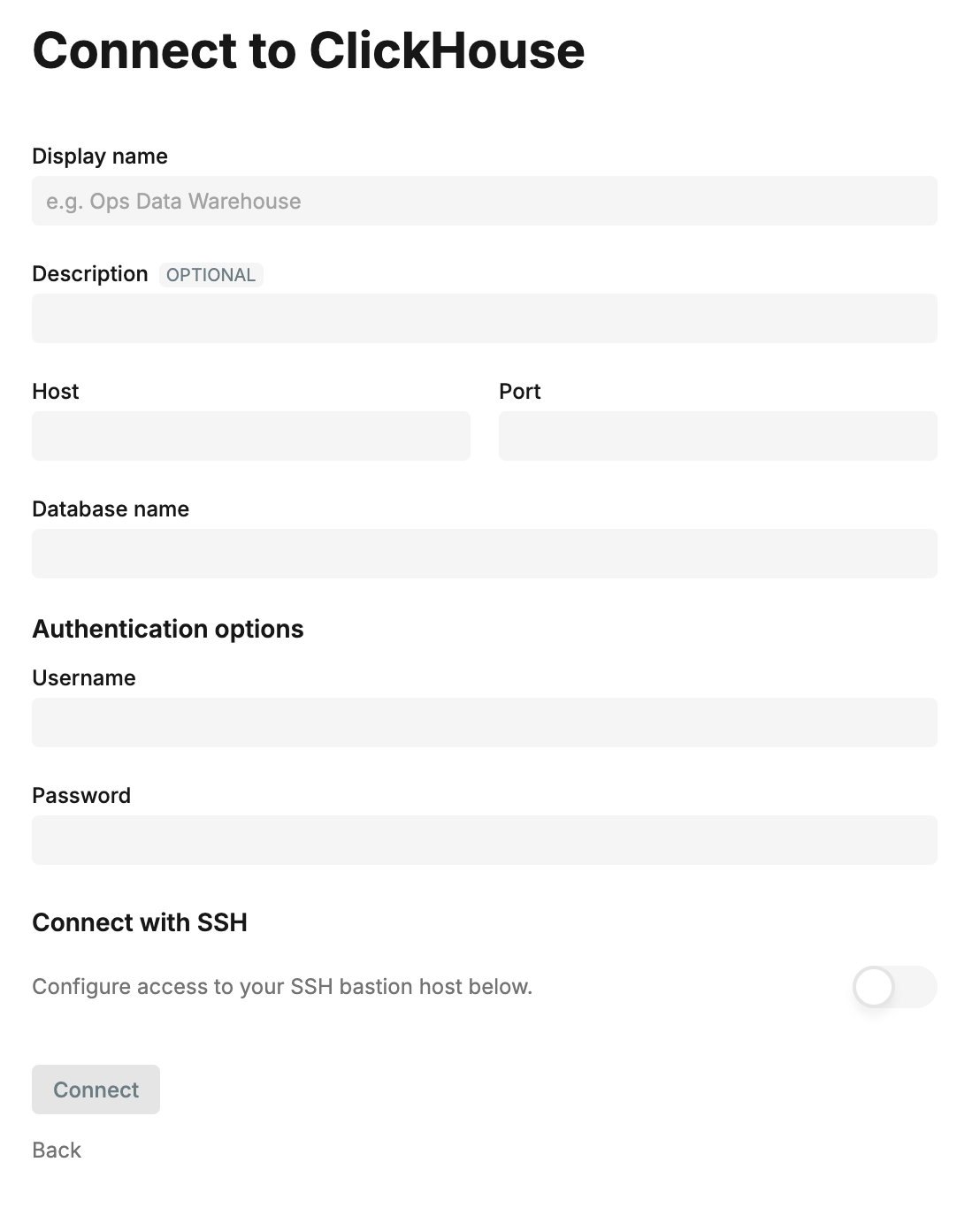
To connect your database, you'll need to enter:
- Display name
- Host
- Port
- Database name
- Username
- Password
You'll also need to ensure that your firewall accepts requests from the following IP addresses.
For eu.count.co workspaces:
34.107.75.117
35.198.189.90
35.234.110.177
104.155.13.208
For app.count.co workspaces:
34.10.203.22
34.31.168.246
34.10.41.10
Connections between Count and your database are encrypted by SSL (TLS). Your database must be configured to use SSL in order for Count to connect.
Connecting via SSH
Count supports SSH connections to your ClickHouse database, via a bastion host.
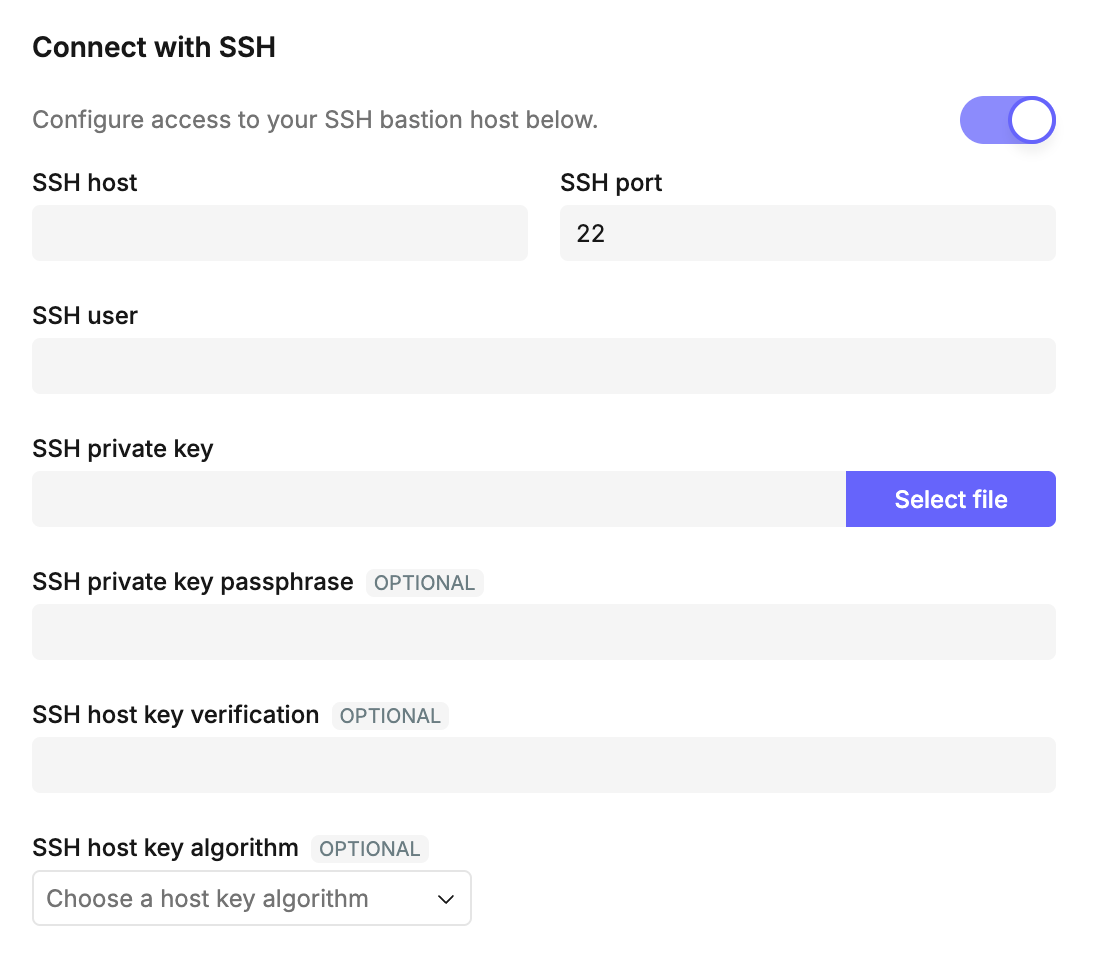
To connect via SSH you must have
- a bastion host in your VPC which can connect to your private database
- whitelisted Count's server IPs so that we can securely connect to your bastion host VM
- details for how to connect to your bastion host, including the host, port, user and a private SSH key.
Details for how to set up a bastion host can be found in your cloud service provider's documentation.
On Count, you can additionally secure your traffic by specifying an SSH host and the algorithm used to generate it. Our servers will check this value against that provided by your VM on connection, helping to verify its identity. This information can be obtained when generating the SSH key pair. On AWS, this information is available in your EC2 instance System logs; you should see a entry in the log with a list of SSH host key keys
-----BEGIN SSH HOST KEY KEYS-----
<fingerprint-algorithm> <verification-key> <user>@<host>
<fingerprint-algorithm> <verification-key> <user>@<host>
...
-----END SSH HOST KEY KEYS-----
Select an algorithm and verification key pair and enter into the details in the above form.