Google Sheets
Our Google Sheets connection allows you to bring in live data from your Google Sheets, which can then be used and combined with other data sources in a canvas.
How to set up your Google Sheets connection
There are two options for connecting your Google Sheets to Count:
- OAuth authentication: This is the easiest way to connect but may not be suitable for large workspaces with many users. It gives Count access to any Google Sheets that you have access to.
- Credentials file (JSON format): This method is more secure for larger workspaces as it restricts access to only the Google Sheets that a service account has access to.
OAuth authentication
(1) Select the OAuth Authentication method, click Authorize, and go through the authentication flow.
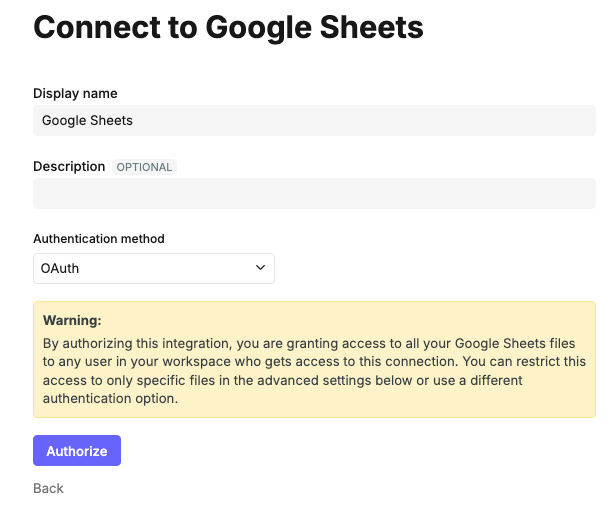
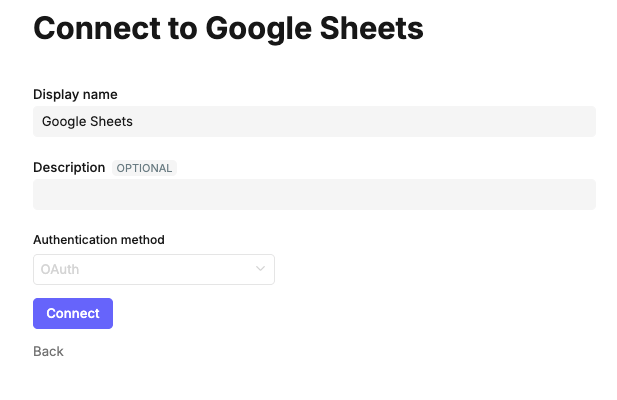
(2) Click Connect to finalise your setup
Credentials file (JSON format)
You can use either your personal account or a service account for this. If you use a service account, it will need to have both the Google Sheets and Google Drive APIs enabled.
To get the credentials file, you'll need to have completed the following steps. A full step-by-step guide can be found below.
- Sheets API & Drive API Enabled
- Service Account Created
- JSON Key downloaded
- Sheet shared with the Service Account email address
You can follow the steps outlined here, or go directly to Google's help site for more information. This is a 3-step process.
Step 1: Google Cloud Setup
- Go to the Google Cloud Console.
- Select the appropriate project or create a new one.
- Enable APIs:
- In the search bar at the top, type
Google Sheets API. Click it and select Enable. - Crucial Step: Go back to the search bar, type
Google Drive API, and Enable that as well. (This is often required by libraries to find/open the files).
- In the search bar at the top, type
Step 2: Create Service Account & Keys
- Navigate to IAM:
- In the sidebar menu (≡), go to IAM & Admin > Service Accounts.
- Create Account:
- Click + CREATE SERVICE ACCOUNT (top center).
- Name: Give it a name (e.g.,
sheet-updater). - ID: It will auto-generate an email address (e.g.,
sheet-updater@your-project.iam.gserviceaccount.com). Copy this email address now—you will need it in Step 3. - Click Create and Continue.
- Grant Permissions :
- Under "Select a role", choose Basic > Viewer.
- Click Continue, then Done.
- Generate Key (The JSON File):
- You should now see your service account in the list. Click on the Email address link to open its details.
- Go to the Keys tab (top bar).
- Click Add Key > Create new key.
- Select JSON and click Create.
- A file (ending in
.json) will automatically download. Rename this file tocredentials.jsonand move it to your project folder.
Step 3: Share the Sheet
The service account is a "user" with its own email address, but it cannot see your files until you invite it.
- Open the specific Google Sheet you want to access.
- Click the big green Share button (top right).
- In the "Add people" box, paste the Service Account email you copied earlier (the one ending in
...iam.gserviceaccount.com). - Ensure the permission is set to Viewer or above.
- Uncheck "Notify people" (since it's a robot, it doesn't read email) and click Share.
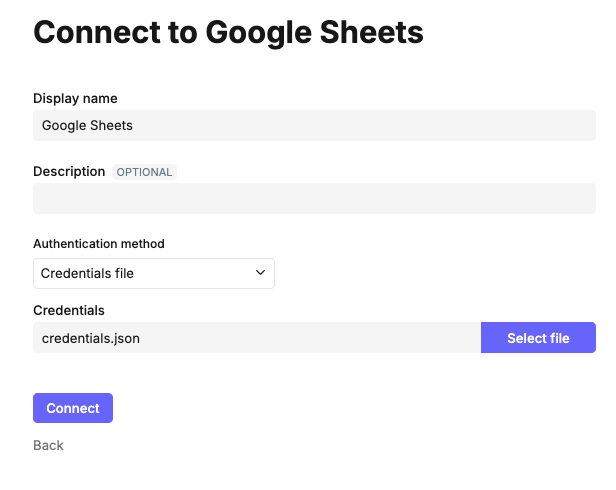
Then in Count, select your credential file and click Connect.
Data access
By default, you can query any Google Sheet in your drive (limited by the supplied credentials if that connection method has been used).
The connection is live, so whenever changes are made in your Google Sheets, they will be reflected in Count. You'll need to refresh the connection if you add, rename, or delete files or tabs/sheets.