Count Metrics x Github
Connect your Catalog to GitHub to manage your semantic layer definitions centrally. This integration enables version control workflows and keeps your data transformation logic and metrics definitions in sync.
Why use GitHub with Count Metrics?
The GitHub integration is designed for teams who want to:
- Colocate catalog files with dbt projects - Keep your semantic layer definitions close to your transformation logic
- Enable version control workflows - Use branches, pull requests, and code reviews to manage changes to your metrics definitions
- Collaborate across tools - Edit catalog files in Count's UI or directly in your GitHub repository
- Maintain consistency - Sync changes bidirectionally between Count and GitHub automatically
Getting started
Connecting an existing catalog to GitHub
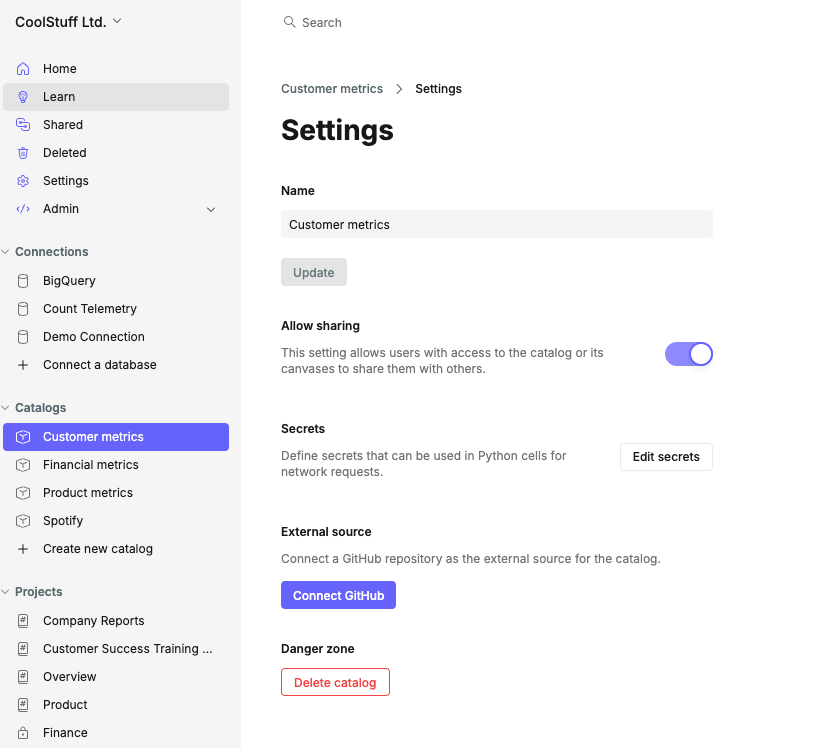
- Navigate to your catalog settings
- Click Connect to GitHub
- Select the GitHub repository where you want to store your catalog files
- If you have existing catalog files, add them to the repository first (you can download your files directly from the catalog editor)
⚠️ Important: Count will warn you if the catalog files in your GitHub repository don't match your existing catalog configuration. Make sure to sync these before proceeding.
Creating a new catalog with GitHub
When creating a new catalog, you’ll see an option to connect it to a GitHub repository from the start.
For a given Github repo, we recommend only having a single catalog. This is because all the dataset and view files in a repo will be synced to the catalogs they're connected to. If you don't want users of the catalog to have access to the whole catalog, it's possible to only share specific datasets with projects (see here).
Working with branches
Count Metrics supports branch-based workflows to help you develop and test changes before merging them to production.
What's supported in Count
- Creating branches - Create new branches directly in the Count UI
- Deleting branches - Remove branches you no longer need
- Committing changes - Commit changes to any branch from Count
- Viewing changes - See what's changed before committing
What happens in GitHub
- Merging branches - Merge branches using pull requests in GitHub
- Updating from main - Pull the latest changes from your main branch in GitHub
- Protected branches - Count respects GitHub's branch protection rules and will prevent commits to protected branches
Pull request checks
When you open a pull request in GitHub that includes catalog file changes, Count automatically adds:
- Status checks - Validation results showing whether your catalog changes are valid
- PR comments - Detailed information about what's changed, including links back to Count for easy review
This helps your team catch issues before merging changes to production.
Editing files
The Count catalog editor gives you access to all files in your connected repository, not just catalog files. This means you can:
- View any file in the repository
- Edit catalog-related files directly in Count
- Switch between Count's UI and your code editor as needed
Troubleshooting
If your organization installed the Count GitHub app before Nov 25, you may need to approve updated permissions. Go to your organisation home page in Github, click the Settings tab, then go down the “Github Apps” in the sidebar. You'll see the “count.co” app there with a button to review the request.
If you see an error when trying to commit in Count, check whether the branch is protected in GitHub. You'll need to commit changes through a pull request workflow instead.