Creating Views From Database Tables
If your data is already well-structured, this is the quickest way to create a View. To get started:
Navigate to the catalog YAML editor by clicking Edit catalog on the catalog main page
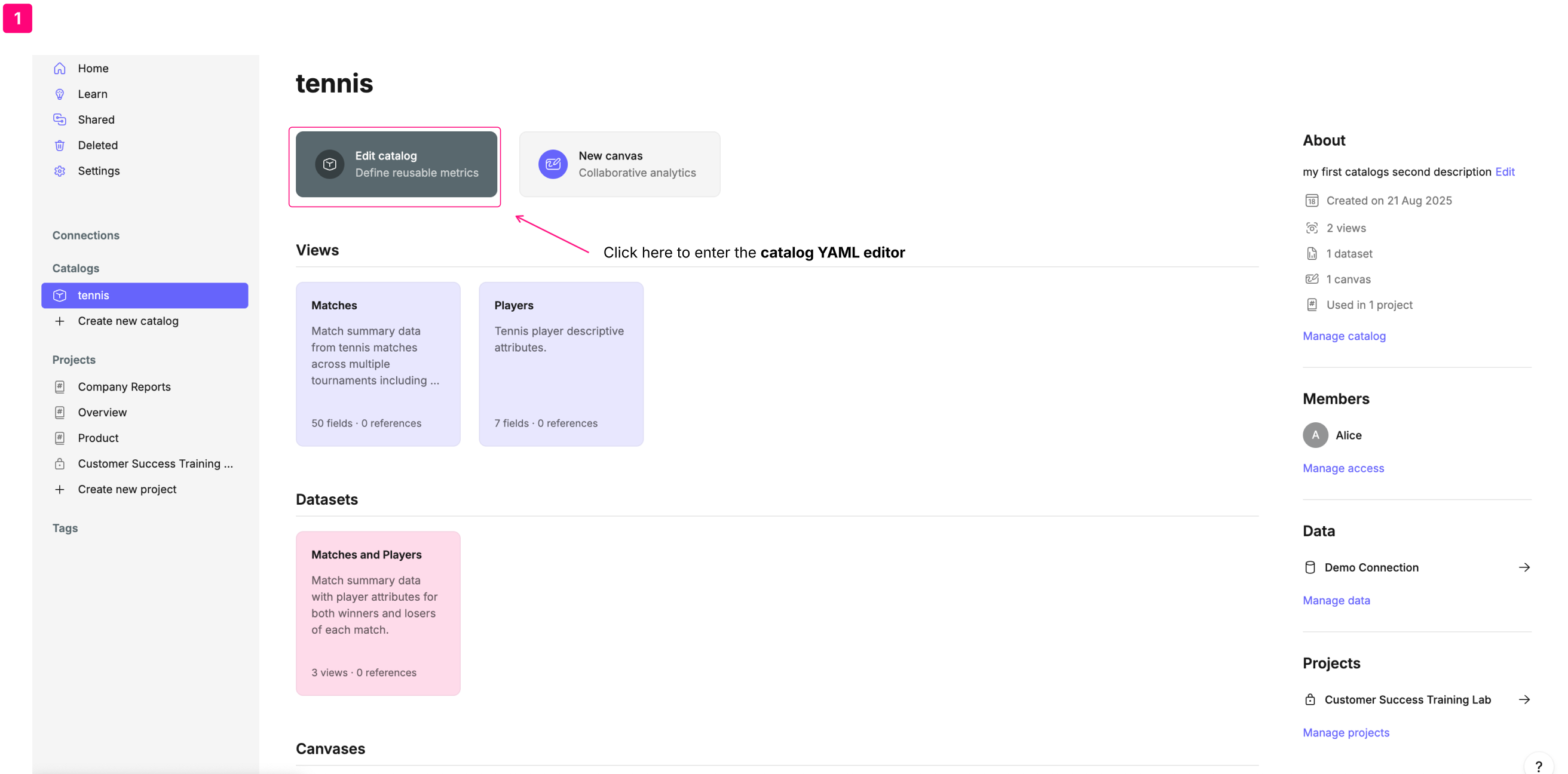
Click on the + button, and then either select Create view (if you want to manually create a single view) or Generate files from tables. If you choose to generate files from tables and select your tables, Count will automatically create views and datasets for the tables you select.
Click on the Source Control tab, and then Validate and commit to publish the new files.
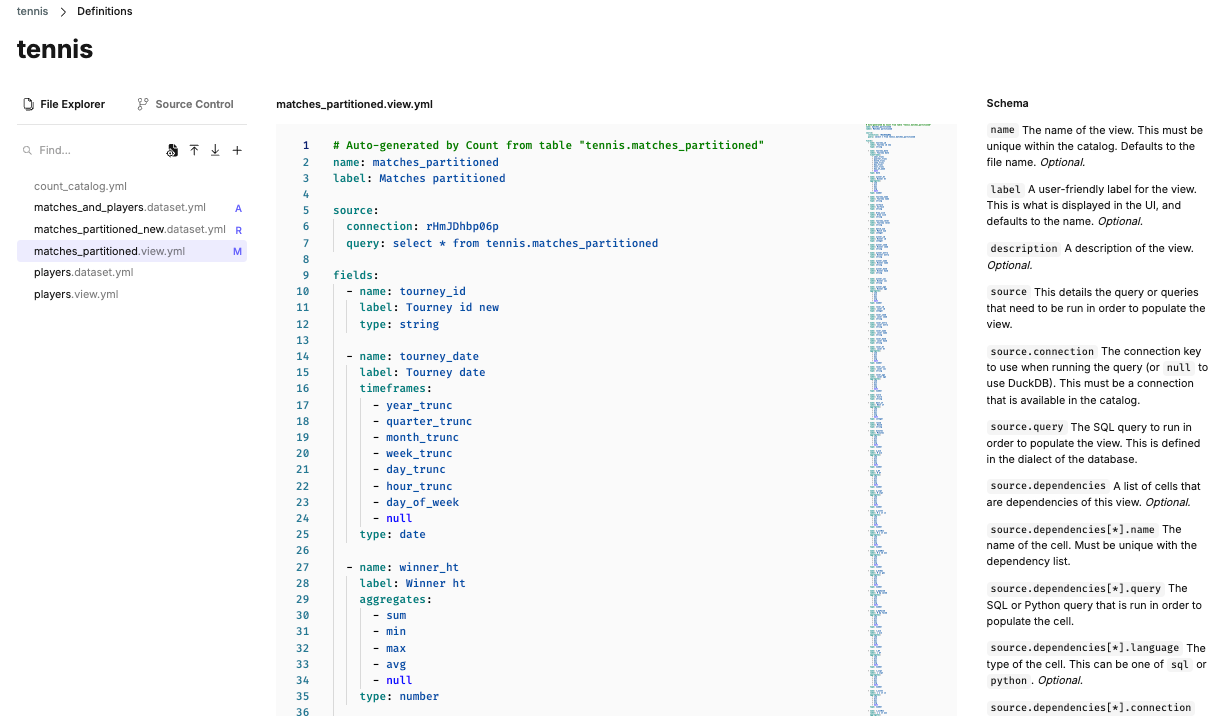
The view’s YAML file will be automatically populated with fields from the table, which you can then customize, remove, or edit as needed.
Auto-generated view YAML
The view YAML are entirely customizable and can be edited directly in the catalog YAML editor. For a full overview of how to customize view YAML, see the following pages.
Each auto-generated view YAML file leads with a descriptive comment identifying the view as auto-generated and the name of the schema object it is generated from.
# Auto-generated by Count from table "tennis.matches_partitioned"
name: matches_partitioned
label: Matches partitioned

source:
  connection: rHmJDhbp06p
  query: select * from tennis.matches_partitioned

fields:
  - name: tourney_id
    label: Tourney id new
    type: string

  - name: tourney_date
    label: Tourney date
    timeframes:
      - year_trunc
      - quarter_trunc
      - month_trunc
      - week_trunc
      - day_trunc
      - hour_trunc
      - day_of_week
      - null
    type: date

  - name: winner_ht
    label: Winner ht
    aggregates:
      - sum
      - min
      - max
      - avg
      - null
    type: number
Auto-generated views are a one-to-one extract of the underlying table. To add filters, joins or additional SQL logic such as case statements, edit the query in source
All fields will be given a user friendly label and, if it exists on the data connection schema, a description.
Numeric fields have a predefined list of default aggregates
Date fields have a predefined list of default timeframes.