Count's AI Agent usage guide
This guide walks through how to add AI agents to your canvas, provide them with the right context, and get the most value out of them. Count’s agent operates like an AI analyst inside your canvas, using the exact same tools that human analysts use.
Getting started
Adding an agent to your canvas
- Open any canvas where you want to analyze data.
- Click the ✨ Sparkle icon in the left sidebar to open the Agents panel.
- Start asking your question.
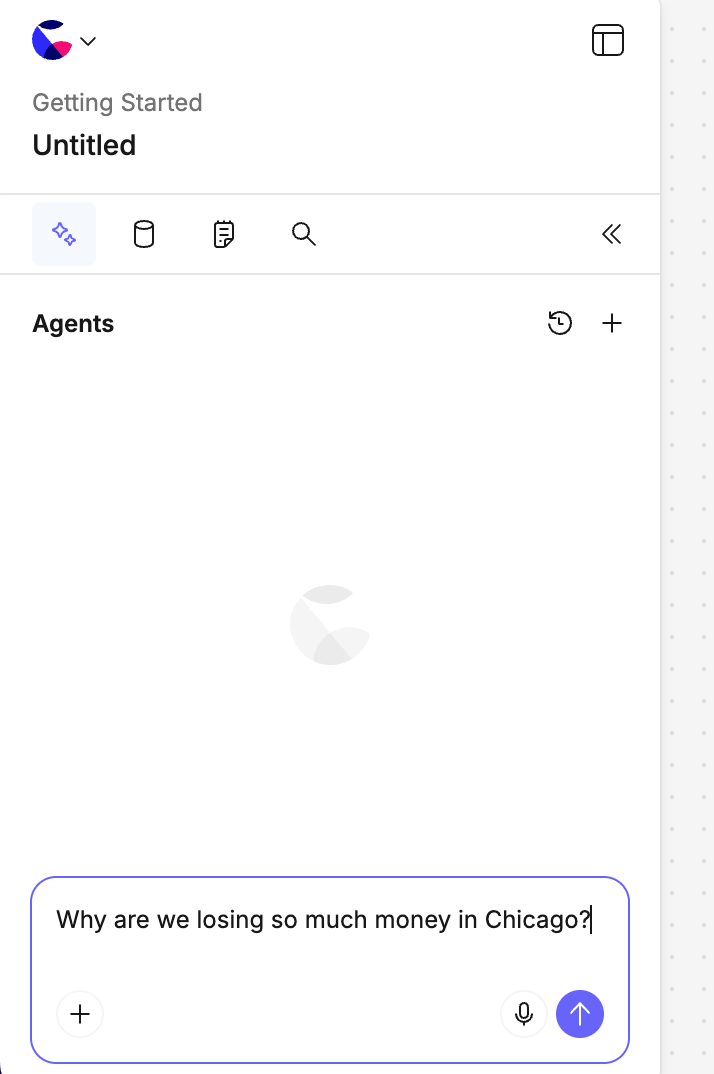
Use the microphone button to speak your question instead of typing—this is a great way to quickly share detailed context!
Managing agents
When an agent is active, it lives in the left-side panel.
- Switching Agents: Click History in the top-right to switch between all agents in the canvas (including those created by other users).
- New Agent: Click the plus (+) icon to create and select a new agent.
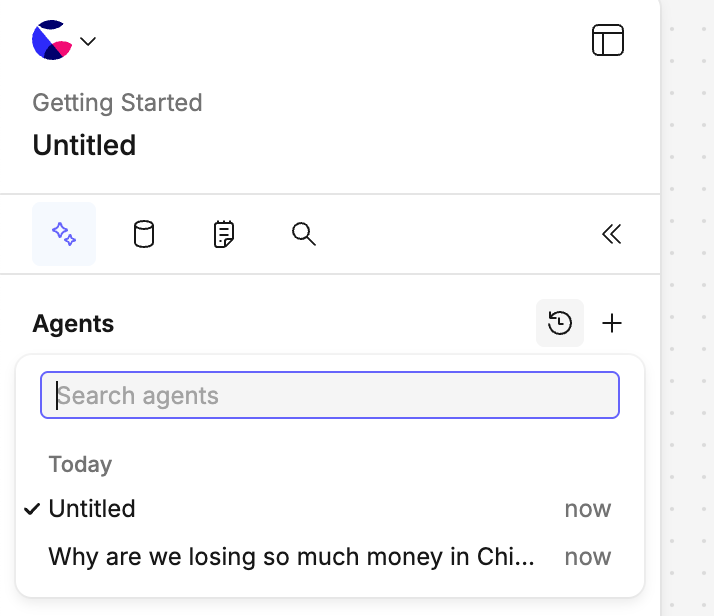
There is no limit to the number of agents that can be in, or active in, a canvas. You can run multiple agents concurrently to investigate different things at once.
Resource limits
Running multiple agents simultaneously will accelerate your workspace credit usage. Agents will run for a maximum of 1 hour before timing out automatically. They will continue working toward their end state even if deselected, if no one is in the canvas, or if the browser tab is closed.
Providing data and context
For the agent to give you the best answers, it needs to know what data to look at and the business logic behind it.
How agents access data
The agent has access to all data sources within the canvas and can autonomously locate relevant data across your Catalogs and databases.
🛡️ Safety First: The agent will never execute a query against your database without your direct approval.
When working with a catalog, the agent automatically reads the full contents of *.dataset.yml files, *.view.yml files, and all AGENTS.md files. This includes structured fields (measures, dimensions, joins) as well as any written comments and documentation inside those files.
Adding specific context
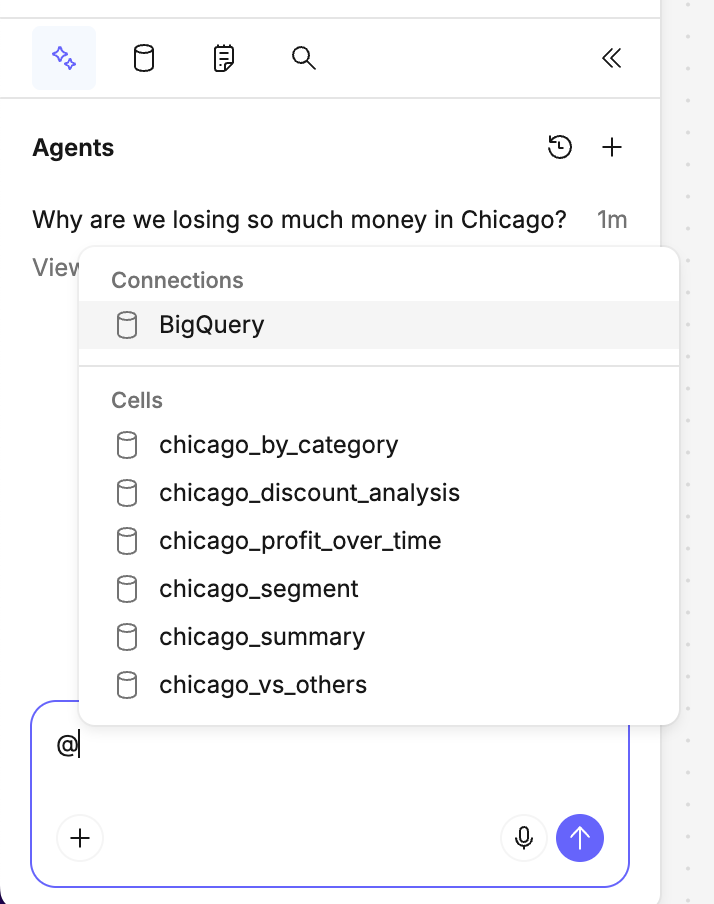
You can manually supply the agent with specific canvas content (like a cell, sticky note, or CSV) so it understands exactly what to reference. You can do this by:
- Using @ mentions: Type
@and select catalog, database connection, or cell names. - Selecting objects: The agent automatically knows what .
Establishing persistent context
You can provide agent-specific context at different levels so you don't have to repeat yourself in every prompt. Learn more in our Context Best Practices guide.
- Workspace-level: Applies across your entire workspace.
- Catalog-level: Applies to a specific semantic layer catalog.
- Project-level: Applies within a specific project.
- Canvas-level: Simply select non-data objects like text boxes and sticky notes and ask a question. This is perfect for sharing definitions, terminology, or a list of priority questions directly in the canvas.
Querying the agent: tips for success
The more specific your prompt and the better your context, the better Count AI can answer your question.
- Be specific: Instead of asking "Show me sales data," try "Show me monthly sales broken down by region for 2024."
- Define custom metrics: If your metrics aren't in a catalog, define them. (e.g., "Show me how margin (Profit / Sales) varies by customer," or "Calculate monthly retention as users active in month N who were also active in month N-1.")
- Ask follow-up questions: If the first answer isn't quite right, just tell the agent what to adjust! It maintains conversational context just like chatting with a colleague.
Understanding and inspecting output
Agents create their output within a standard frame on your canvas.
Viewing progress
Find and select an agent in the Agents panel to see its progress.
- Atomic steps: The panel outlines the distinct steps the agent is taking (e.g., canvas actions or "thinking"). Click the disclosure arrow (
>) to expand and understand these steps. - Errors are normal: It is completely normal to see red error steps. Like any human analyst, the agent may occasionally make syntax errors in SQL or run into analytical walls. It uses these errors to iterate, adjust, and try again.
Note on permissions
Users with Data Editor permissions can see and continue any conversation in the canvas. Users without these permissions can view the conversations, but cannot continue them or start new ones.
Types of output
The agent can create several types of canvas objects, all of which are fully editable by you:
- Low-code cells: Whenever possible, the agent builds visual cells that clearly show where data came from—no SQL required.
- SQL cells: For complex questions, the agent writes raw SQL. You can click "Show input" on any cell to see the exact query it generated.
- Visualizations: The agent automatically generates charts, tables and maps based on what makes the most sense for your specific question.
- Text and sections:
Troubleshooting
Count AI works best with analytical questions regarding data you've actively provided as context. It may struggle with questions about data it doesn't have access to, or very ambiguous queries without sufficient background context.
If you aren't getting useful results, try:
- Adding more specific context using
@mentions. - Breaking complex, multi-part questions down into smaller, step-by-step requests.
- Explicitly defining custom terms or metrics in a sticky note and selecting it as context.