Python cells
Create a Python cell by either:
- Using the
Ykeyboard shortcut to place a new cell - Selecting the Python cell option from the control bar
- Selecting the Add Python cell option when referencing a cell from the + icon that appears when the cell is selected.
#How Python cells work
Python cells work very similarly to SQL cells, consisting of a text input area and an output area. Python cells are reactive just like all other cells, and their relationships are indicated by the same connector lines.
Python cells are executed on Count's servers in an isolated, sandboxed environment where network access can be controlled.
Legacy Python cells
Older workspaces may still have canvases using our legacy, browser-based Python runtime. See here for information about this and about how to migrate to the new server-based Python runtime.
#Referencing other cells using the cells variable
In Python cells, there is a special global cells variable that contains the results of other cells formatted as pandas DataFrames. Access cell results using keys or attributes on this object:
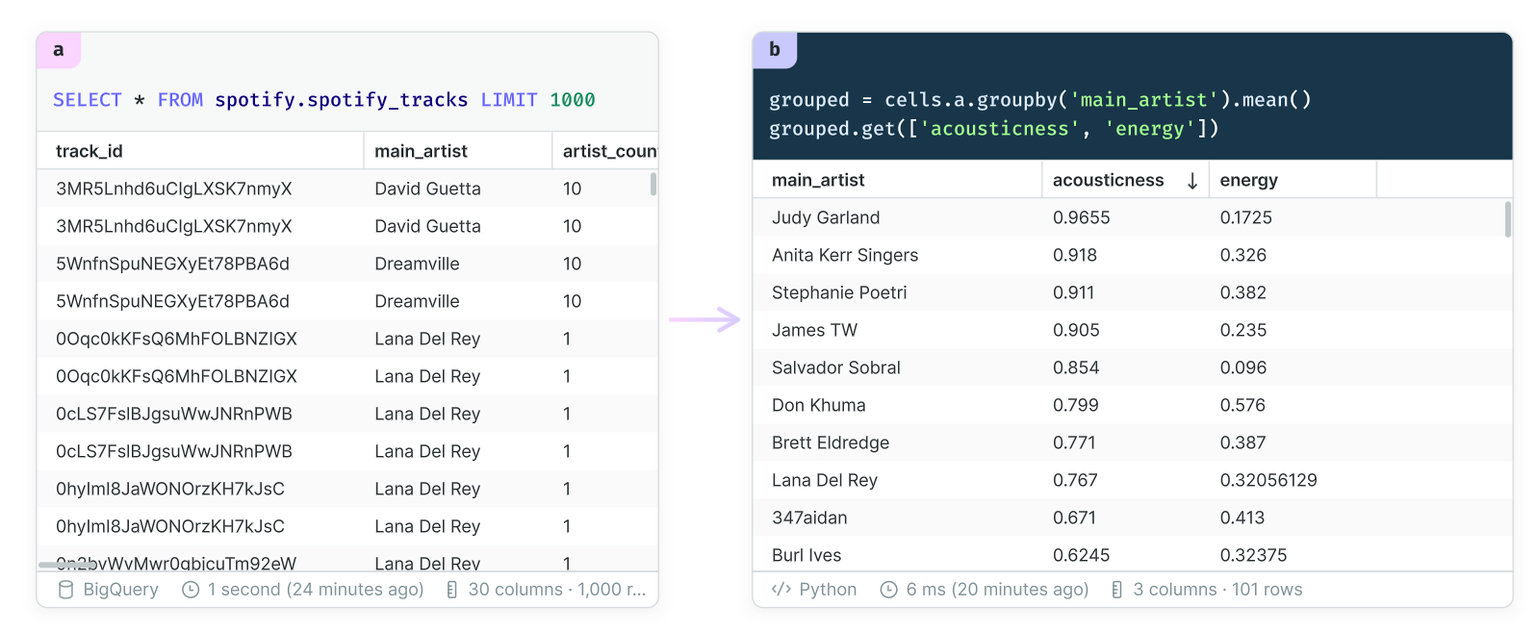
Most operations work the same way on categorical vs non-categorical columns, but if a non-categorical form is required, then use the astype method:
df['column'] = df['column'].astype('object')For referencing other Python cells, you can access files output by that cell using cells.a.outputs.files (see Reading another cell's output files below).
#Referencing Python variables
Each Python cell is run independently of any others. For this reason, variables defined at the root scope of one Python cell are not available in any other Python cell (they do not shared any scope).
#Referencing Python cells from DuckDB
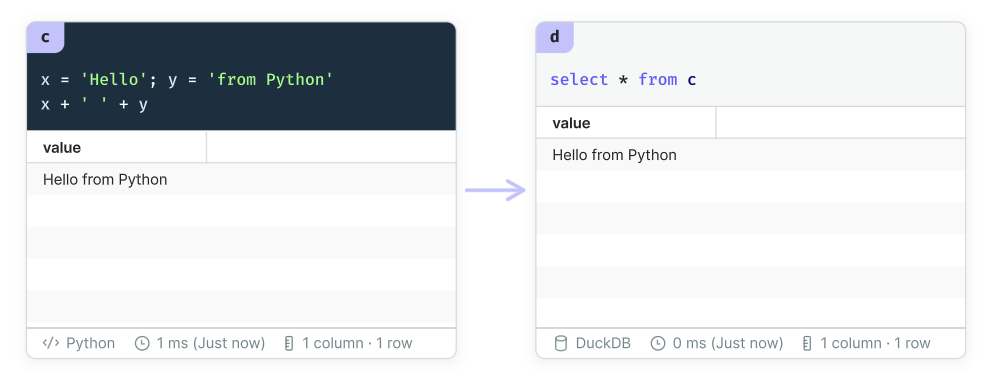
The last expression in a Python cell is special, and becomes the single output of that cell. If this output can be represented as a table, it can be queried by local DuckDB cells too:
#Reading uploaded files
Files uploaded to the canvas (see Upload files & CSVs) are exposed to Python through the global count.files object, using by the file's identifier shown on the file card and in the righthand menu when the file is selected.
We recommend having the agent write the Python to read these files but if you want to do it yourself here is an example:
f = count.files['sales_2024']The entries in count.files have the following properties:
| Property / method | Description |
|---|---|
| name | File identifier |
| mime_type | The file's detected MIME type, e.g. application/pdf |
| size | Size in bytes |
| read() | The contents as bytes |
| text(encoding='utf-8') | The contents decoded as a string |
| path | A temporary file path holding the contents, with the original extension |
Use .path with libraries that read from disk and sniff the extension:
import pandas as pd

df = pd.read_excel(count.files['sales_2024'].path)
Use .read() or .text() with libraries that accept in-memory data:
import json

config = json.loads(count.files['settings'].text())
.read() and .text() fetch the file each time they are called, so assign the result to a variable rather than calling them in a loop. .path downloads once per run and reuses the same temporary file.
#Python cell outputs
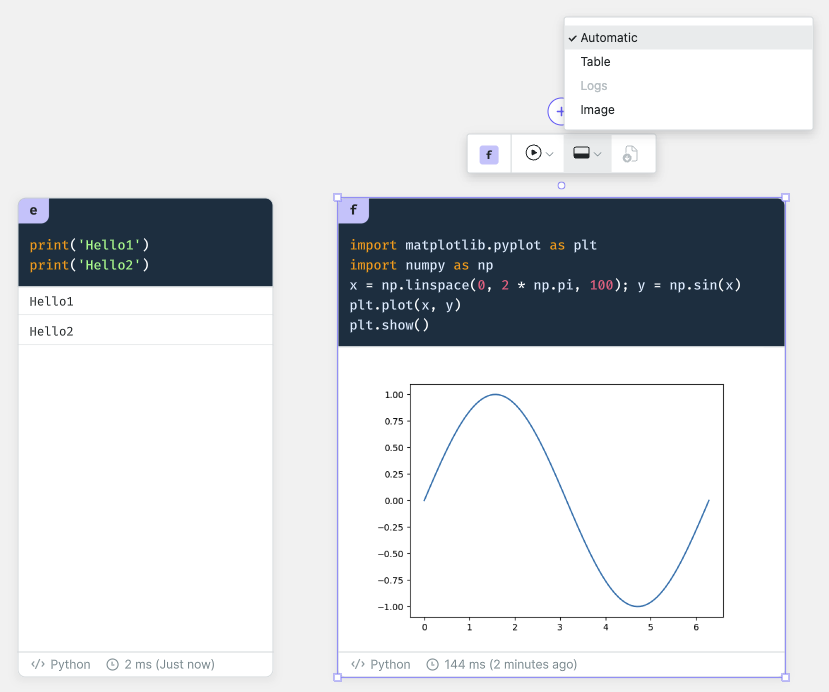
As Python is a more expressive language than SQL, it is able to output more data types:
- Table output - if the final expression of the cell is representable as a table
- Image output - if the final expression of the cell is a PNG-formatted image
bytesobject - Logs output - if the cell has printed anything during its execution
- Files output - if the cell registered files with
count.outputs
The output type defaults to Automatic, which can be overridden from the Output type button above the cell.
#Outputting files
Python cells can also generate and output files. For example they can output:
- a formatted Excel workbook;
- a PDF report; or
- a Parquet extract
Output files are registered using count.outputs:
df.to_excel('summary.xlsx', index=False)
count.outputs.add('summary.xlsx')count.outputs.add_bytes('chart.png', fig.to_image(format='png'))As in the examples above there are two methods:
count.outputs.add(path, name=None)registers a file already written to disk. The output name defaults to the file's basename.count.outputs.add_bytes(name, data, mime_type=None)registers in-memory bytes. The MIME type is guessed from the name if not given.
Output names must be plain filenames (no directories) and unique within the cell. Files are collected after your code finishes, so a file you write after calling add is still captured. Files registered before an error are kept even if the cell then fails, like printed logs.
#Where output files live
Output files are part of the cell's result, not objects on the canvas. If not shown by default in the cell's output, use the Output type picker to select the Files view. They also appear in the Files pane of the data bar grouped by cell, and are replaced whenever the cell re-runs.
#Reading another cell's output files
Other Python cells can read output files through the cells variable:
report = cells.build_report.outputs.files['summary.xlsx']
df = pd.read_excel(report.path)
These file entries are instances of the same class described above in Reading uploaded files, so .read(), .text() and .path all work the same.
#Interactivity
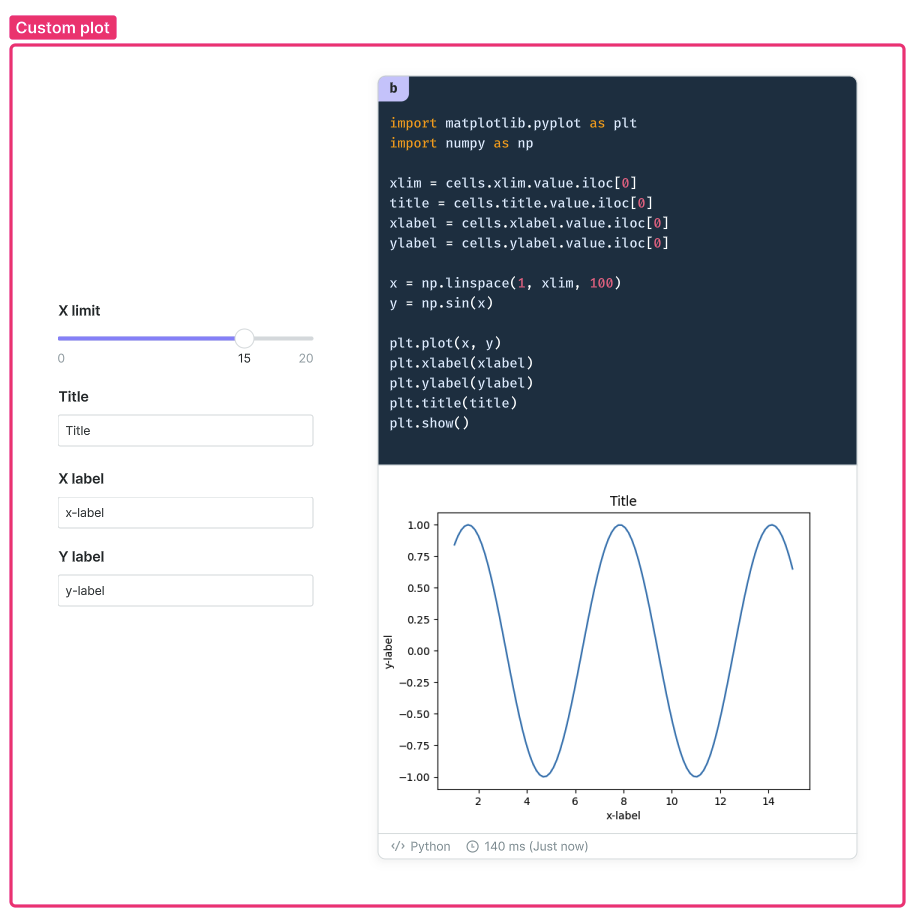
Because Python cells work just like any other cell, you can use control cells to add interactivity to any Python cell. In the example below, the parameters of a plot are adjustable using control cells:
#HTML outputs
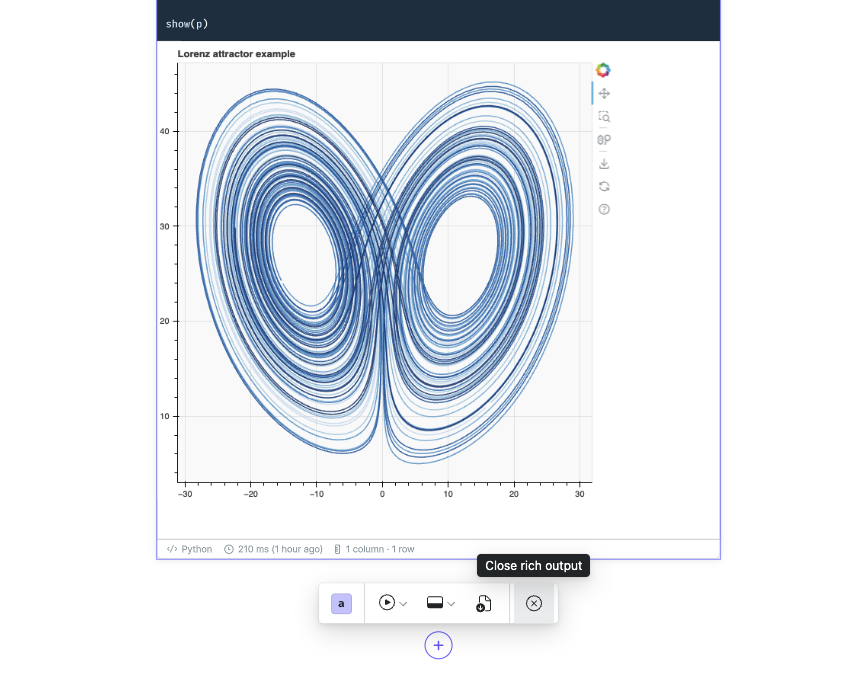
If a Python cell returns an object with an HTML representation, a View output button will appear. Clicking this button will cause the output to be displayed in the output section of the cell.
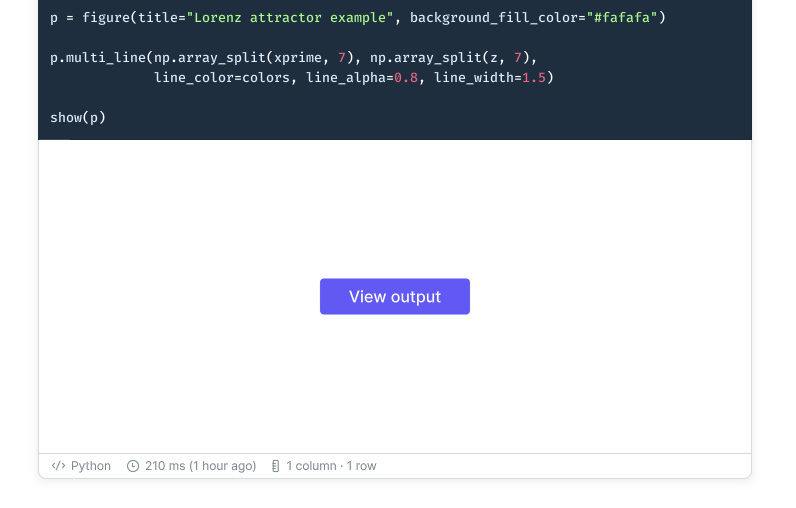
To close a HTML output, click the Close rich output button from the floating cell controls:
#Technical details
An object is considered to have HTML output if:
- It has a method called
_ipython_display_which returns a string - It has a method called
_repr_html_which returns a string - It has a method called
_repr_mimebundle_which returns a dict with a keytext/html
Any HTML output is contained within a sandboxed iframe, so some functionality may be restricted. Most existing packages which conform to the IPython standard methods described above should work with Count. If you encounter a package which does not work as expected, please contact Count support.
#Python packages
Any public package on pypi.org should be available to use. To load a package, just import it as usual and Count will attempt to automatically download it and make it available. To use a specific version of a package you can either:
Use "Inline script metadata" (see here) to define dependency at the top of your cell like this:
# /// script
# dependencies = ["pandas==2.0.4"]
# ///

import pandas as pd
Or use Jupyter notebook style magic pip commands like this:
# %pip install pandas==2.0.4

import pandas as pd
Private Python packages are not currently supported.
#Performing network requests
Network requests can be made by Python cells (e.g. using packages like requests and urllib3) provided it is allowed by your workspace. Specifically workspaces can be configured to:
- allow all network requests; or
- allow only network requests to specific domains (if no domains are specified then network requests are blocked completely)
Maximum request payload limits apply, so network requests will fail if they attempt to send too much data.
#Using secrets
Network requests made by Python cells can also reference secrets (e.g. API tokens) as below:
import requests
from count import get_secret

response = requests.get(
    "https://example.com/path",
    headers={
        "Authorization": f"Bearer {get_secret("my_secret")}",
    },
)
data = response.json()
The Python code itself won't be able to access this secret. Instead get_secret("my_secret") returns a random token which will be substituted for the real secret as part of proxying the network request. This keeps your secret safe from being accidentally leaked.
Secrets can be configured at both the workspace and project levels (project secrets will take precedence if secrets share the same name). Secrets must be scoped to specific domains (even if network access is otherwise unrestricted).
There are some security considerations to note when using secrets in Python cells:
- Secrets can only be used in network requests.
- Secret values are inserted into the network requests and then sent to the URL specified in the request.
- Secret values are not accessible from the Count app regardless of your permission level.
- If you grant analyst access to a canvas, you should assume that the editor will be able to access any secret you have defined by, for example, sending it to a URL that they control.
- You should never directly enter a secret value into the text of a Python cell, as it will be visible to all viewers of that canvas, even if the cell input is hidden.
Be careful when using libraries which transform secrets. For example, instead of using the auth parameter in requests (which automatically base64-encodes its arguments), construct the Authorization header manually.
Last updated: 24/09/26