MCP connections
#Introduction
Much like database connections, Count can also connect to any remote MCP server via MCP connections. MCP connections act similarly to database connections - they receive queries and return results.
The main differences are:
- MCP connections don't have to return tables, they can return any kind of textual result - JSON, markdown, plain text etc.
- MCP cells can only be created and edited by an agent.
- MCP queries don't have to be read-only - you can use any MCP tool.
#Creating an MCP connection
Click the Create new connection button from the workspace home page to see a list of pre-configured MCP connections:
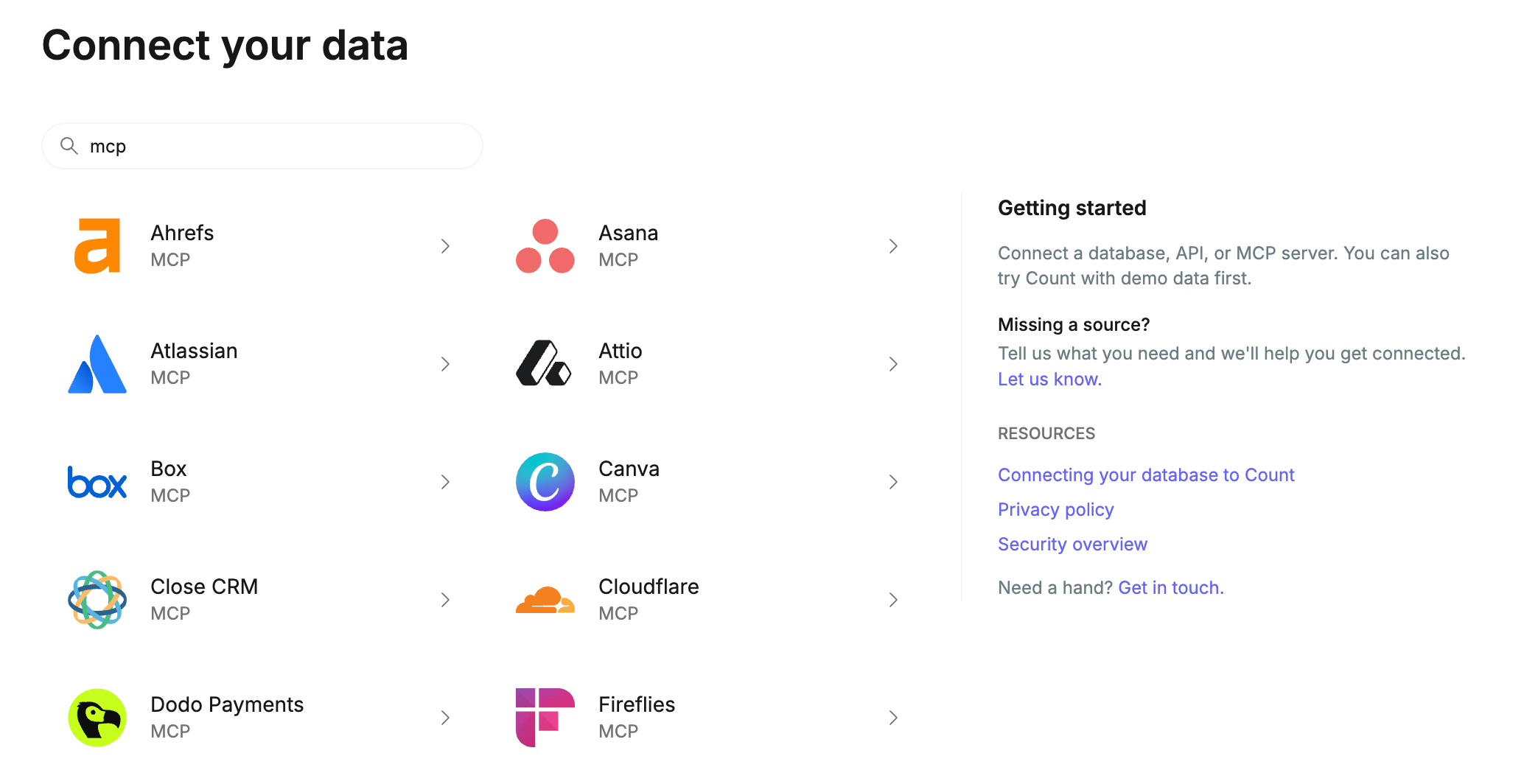
If your connection doesn't show up, please tell us using the in-app chat! In this case, it's always possible to use the generic MCP Server option at the end of the list.

Selecting a pre-configured or default option will present the same connection options either way:
- Name / Description - how this connection appears in Count
- Authentication method - how the connection should be authenticated, either OAuth or Authorization header.
- URL - the unique URL for the MCP server. This will be populated for pre-configured options, otherwise please consult the documentation for the service you wish to connect.
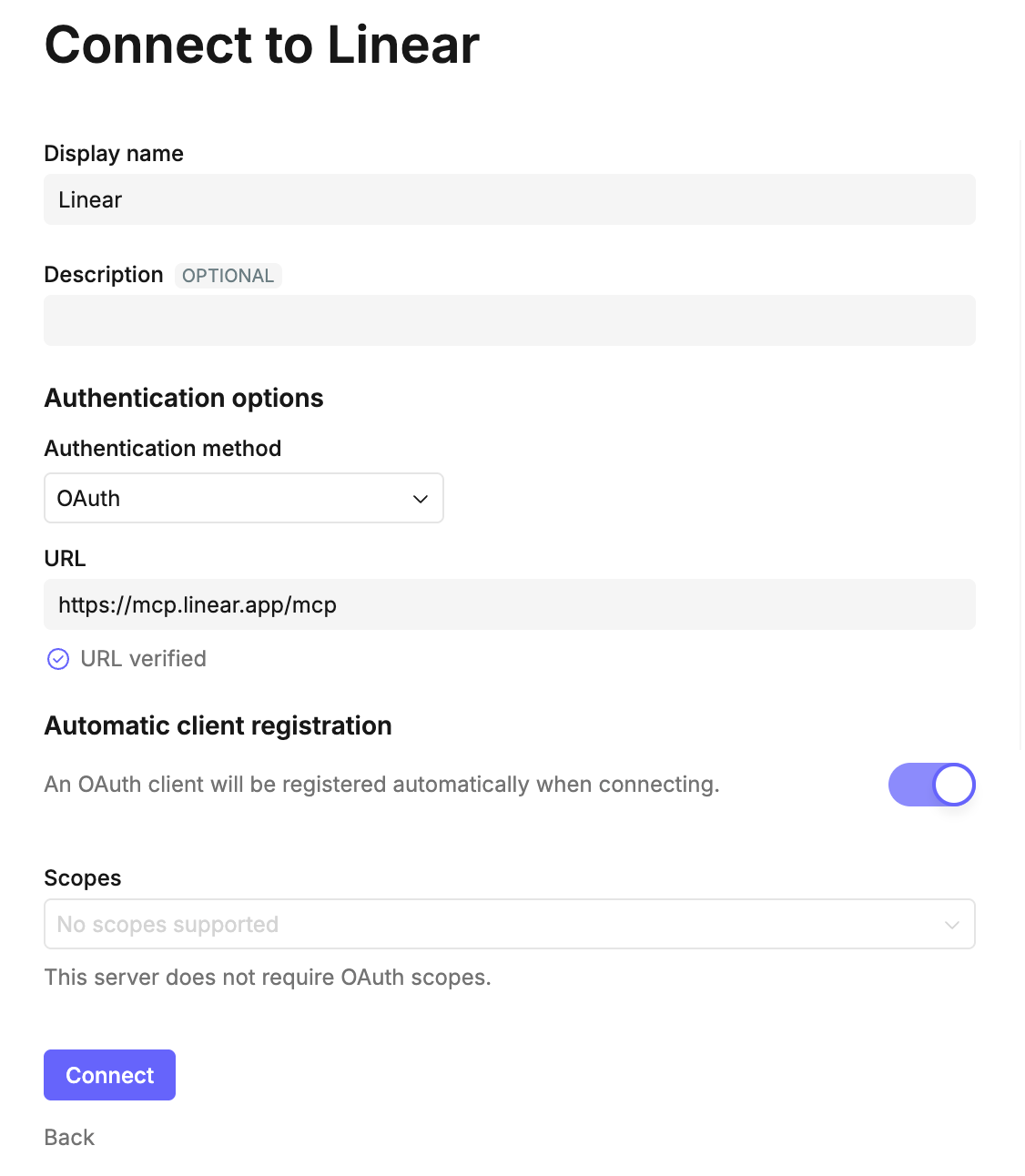
The available authentication options depend on the chosen authentication method:
OAuth
OAuth is the most common approach to authenticating with MCP servers. You will be redirected to the MCP server and prompted to sign in to your account there. Upon granting access to Count, you will be redirected back with an access code tied to your MCP account.
- Automatic client registration - many MCP servers are able to create an OAuth client on-demand, in which case you do not need to specify any OAuth client details if this option is supported by your MCP server.
- Client ID / client secret - if your MCP server does not support automatic client registration, you will need to create a client first - please consult the documentation for the MCP server. Once you have created a client, enter the details here.
- Scopes - some MCP servers support explicit scopes, which define the access granted to Count when sending requests to the server. If available, please ensure that all required scopes are selected. Consult the documentation for the MCP server if you are not sure.
Required scopes
Some MCP servers require the offline_access scope to be granted before they will allow Count to connect. If you encounter issues when connecting and this option is available, try ensuring that it is selected.
OAuth clients are shared
Once you have created an MCP connection using OAuth authentication, those credentials will be shared amongst all Count users with access to that connection.
If the OAuth client is tied to your MCP server account, ensure that the connection is only shared with workspace members that should be able to use the MCP connection with your credentials.
Authorization header
Some MCP servers do not support OAuth, and instead require that a secret is passed in the Authorization header when making requests to the server, often in the form Bearer <token>.
If so, please enter the appropriate value for the header here.
#Configuring an MCP connection
Most of the settings for MCP connections are shared with database connections, with the exception of tool settings.
MCP servers expose a list of tools - these are the actions that the MCP server can perform. Most tools are read-only - for example, 'fetch my recent conversations'. However other tools are not, for example 'create a new issue for this bug report'.
By default Count disables all tools that are reported to have side-effects by the MCP server. This does rely on the server providing an accurate overview of the tool capabilities, so please check that the appropriate tools are enabled after first connecting to an MCP server.
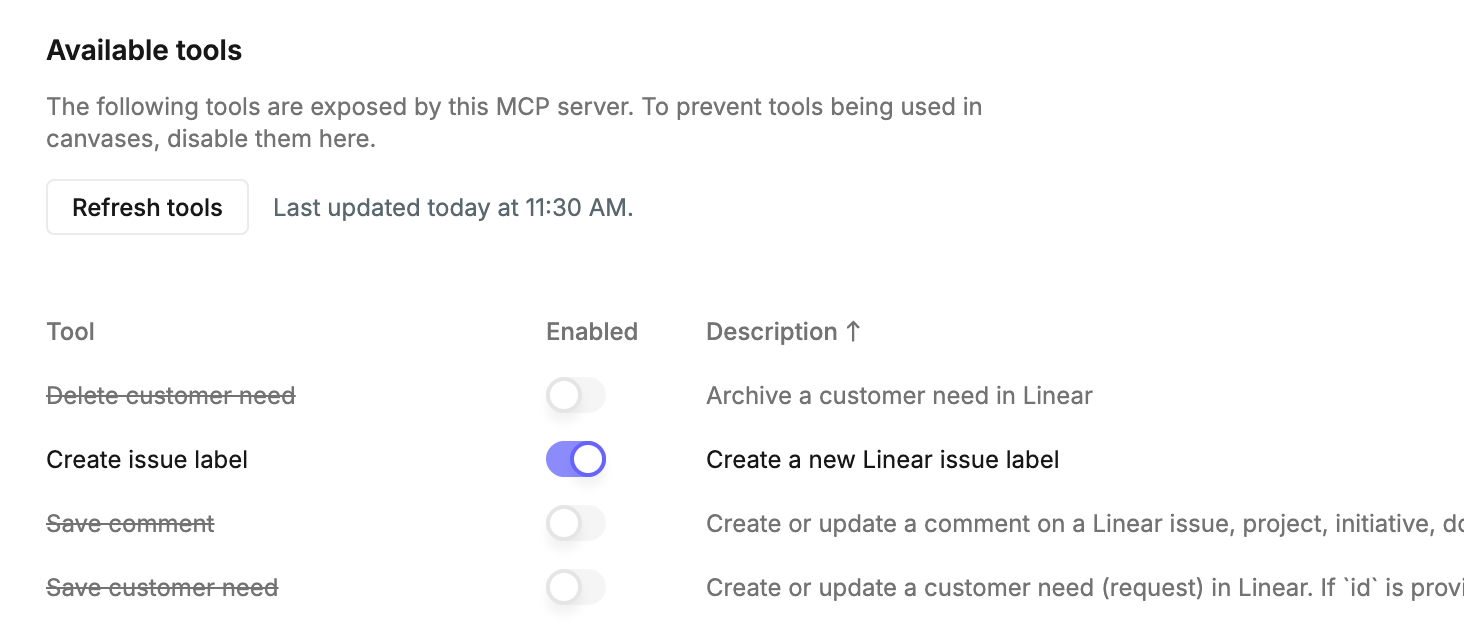
The list of tools is refreshed automatically every day, but if you notice a tool no longer working as expected, try clicking the Refresh tools button to fetch the latest tool definitions from the server.
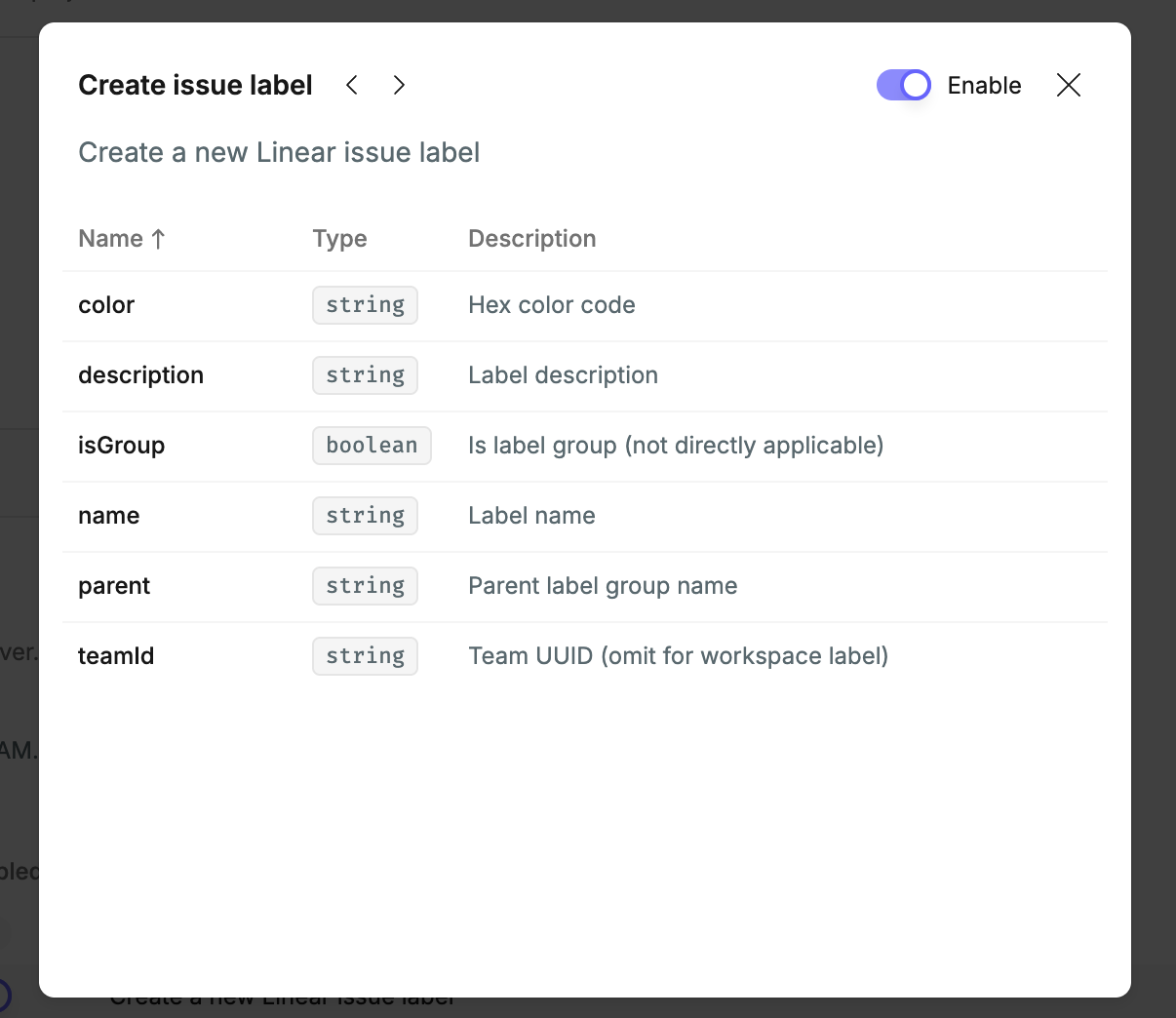
Clicking a tool will show more information about the tool - this information is typically designed for AI agents to consume, but it is often helpful to read the descriptions of tools and their parameters to understand what their effects might be.
#Using an MCP connection
Once connected, you'll first need to add the MCP connection to a project as usual, after which it will appear in the Sources list in the canvas.
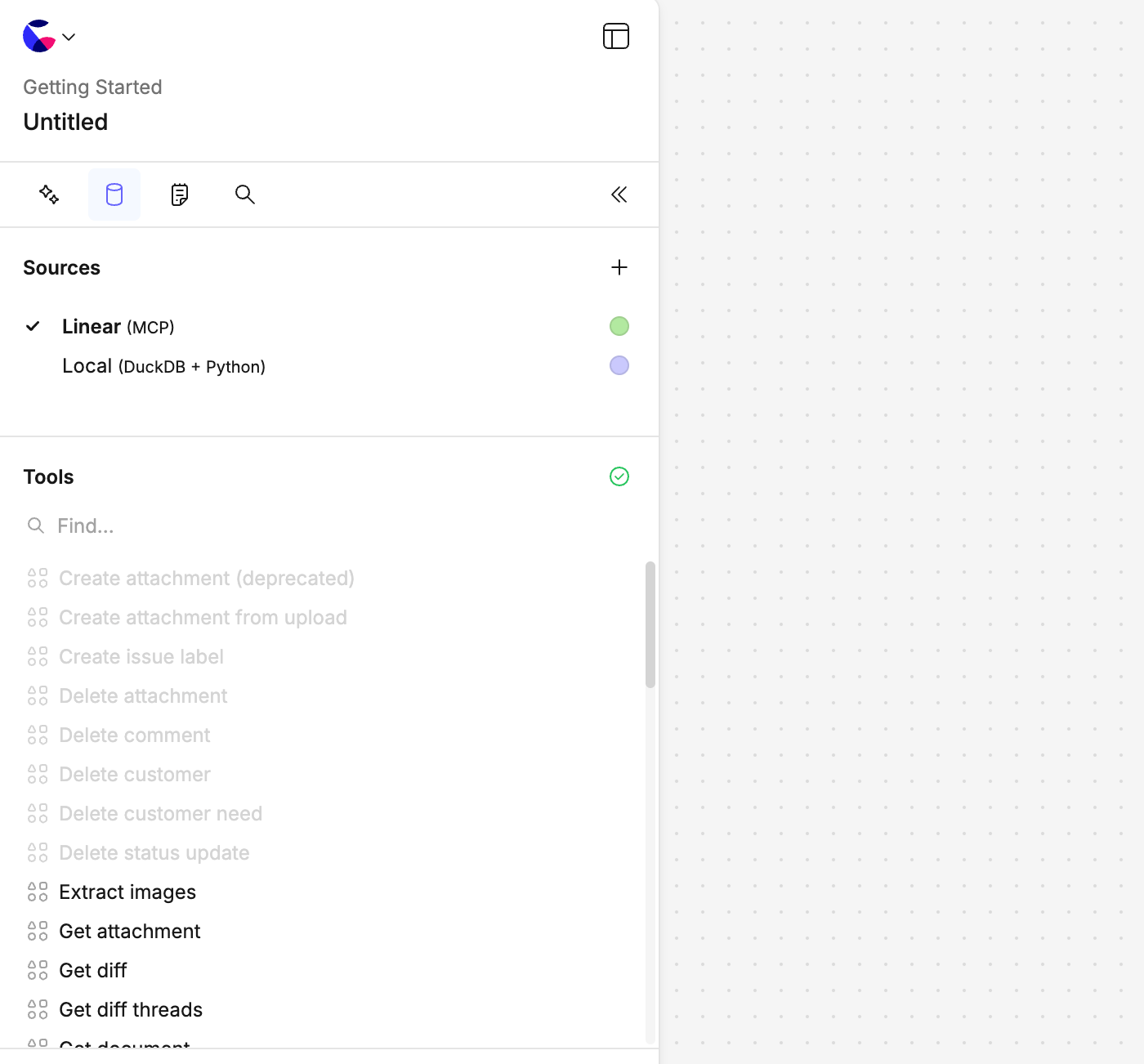
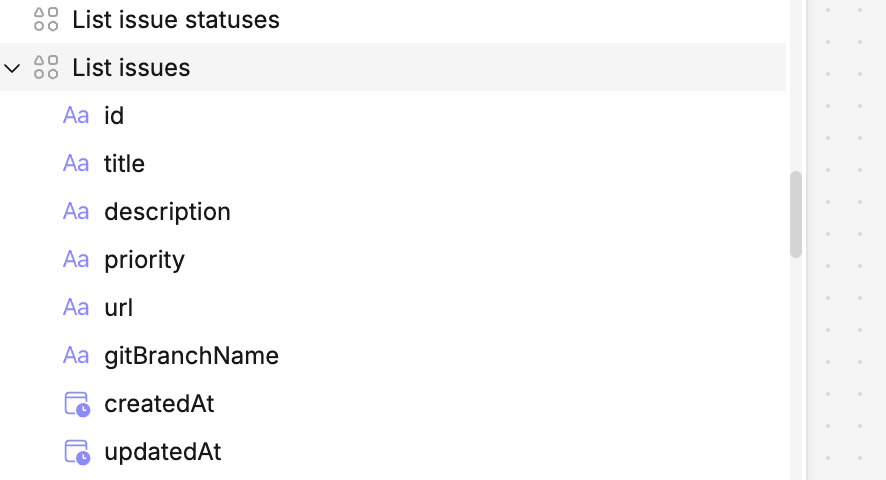
When an MCP connection is selected, the Tables pane shows available tools instead, indicating which are enabled or disabled. Once a tool has been used once, if it returns tabular data the result columns will also be shown here:
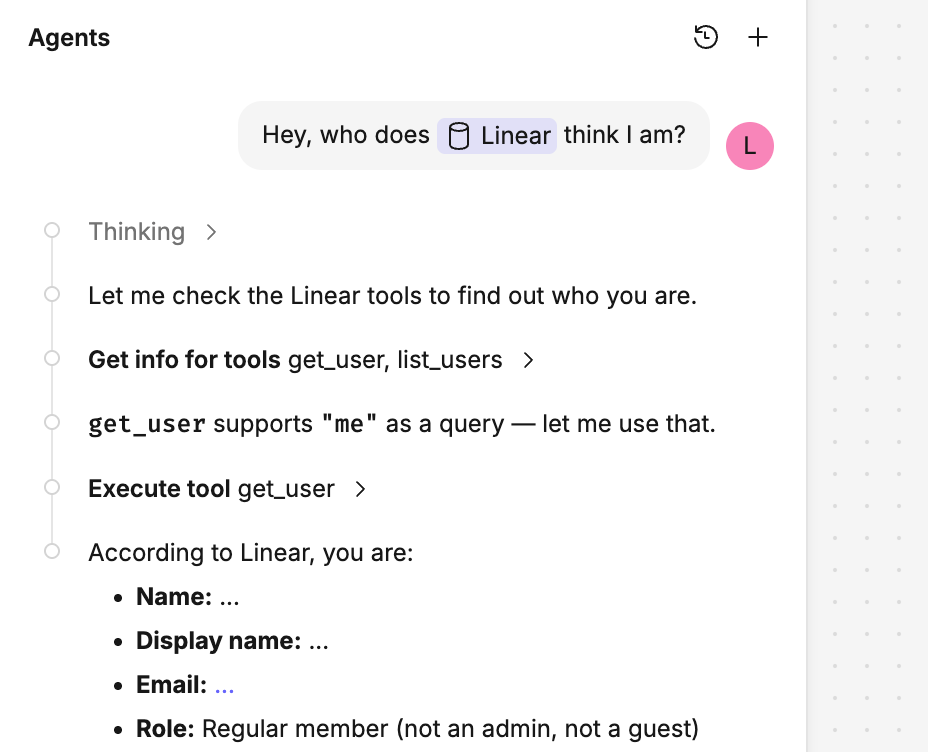
To use a tool, simply ask the agent - the agent will look up the tools it has access to (excluding disabled ones), figure out how to use it, and respond with the results:
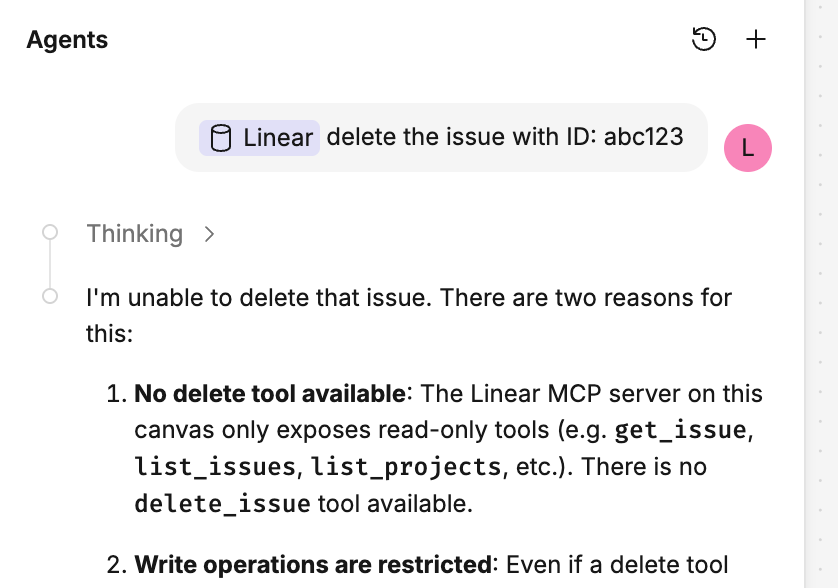
Attempts to use a disabled tool will fail:
#MCP cells
Some MCP tools can return a lot of information, which may overwhelm the context window of the agent.
Count detects large responses and instead instructs the agent to create an MCP cell - this is a cell that represents the tool invocation. Agents can read and execute these cells just like other cells, and the results are cached in the same way.
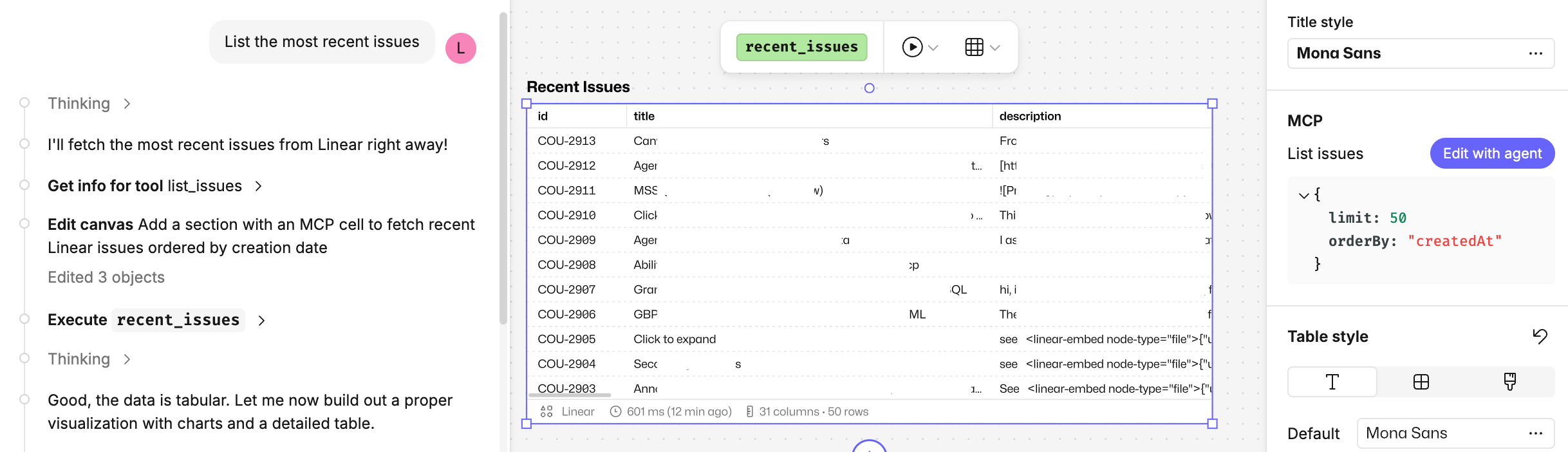
In this way, the agent can query and inspect the MCP tool results just like it does for other cells - running introspective queries, joining to other cells, constructing SQL or Python cells to analyse the results in more detail etc.
Tabular vs. non-tabular results
MCP tool results are returned to Count in various forms - often JSON, but also YAML, TOON, Markdown, or plain text. Most results are tabular in nature, and in these cases the MCP cell will show a table output.
To see the raw response from the MCP server, select the Raw option from the output selector above the cell:
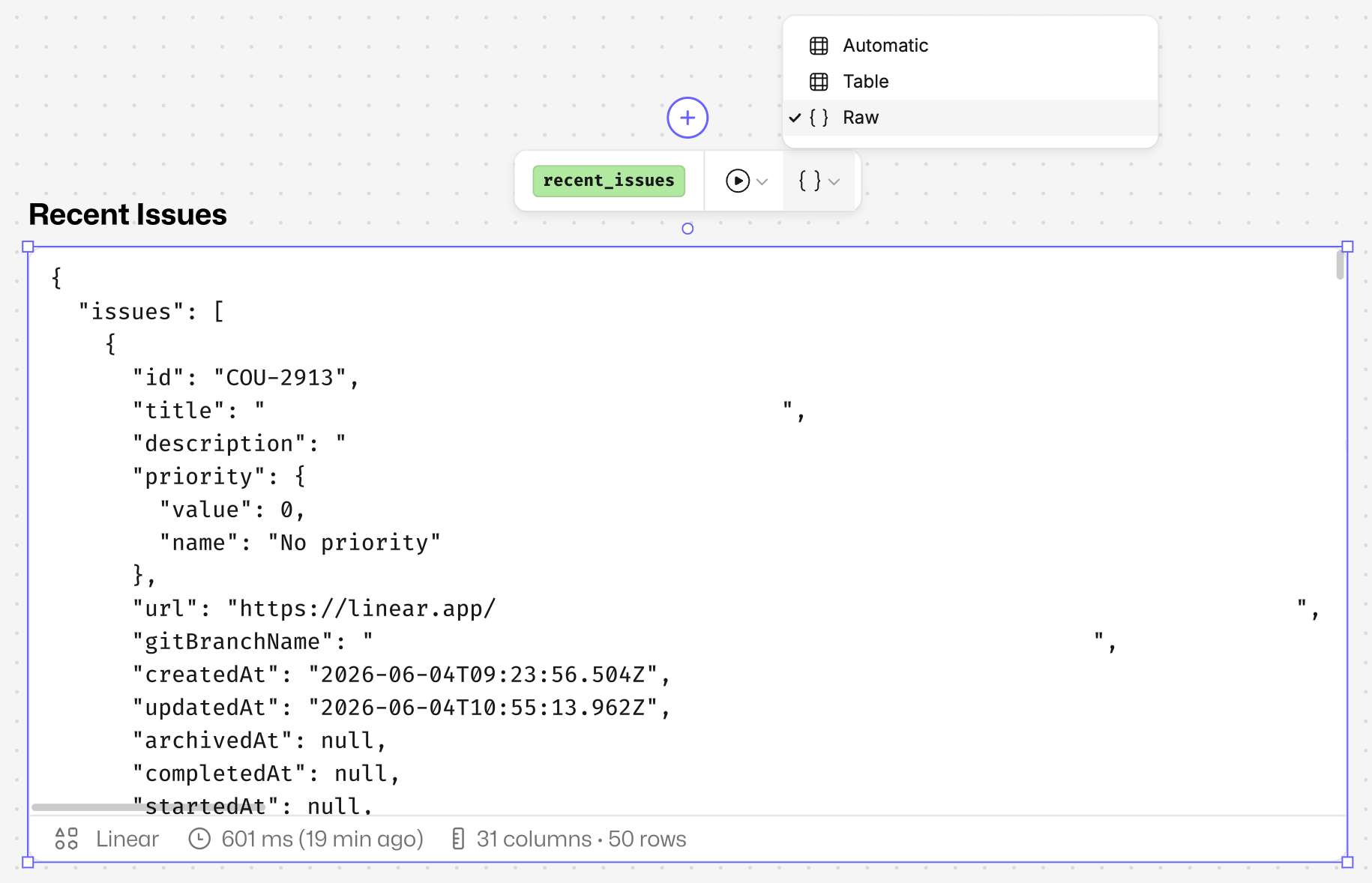
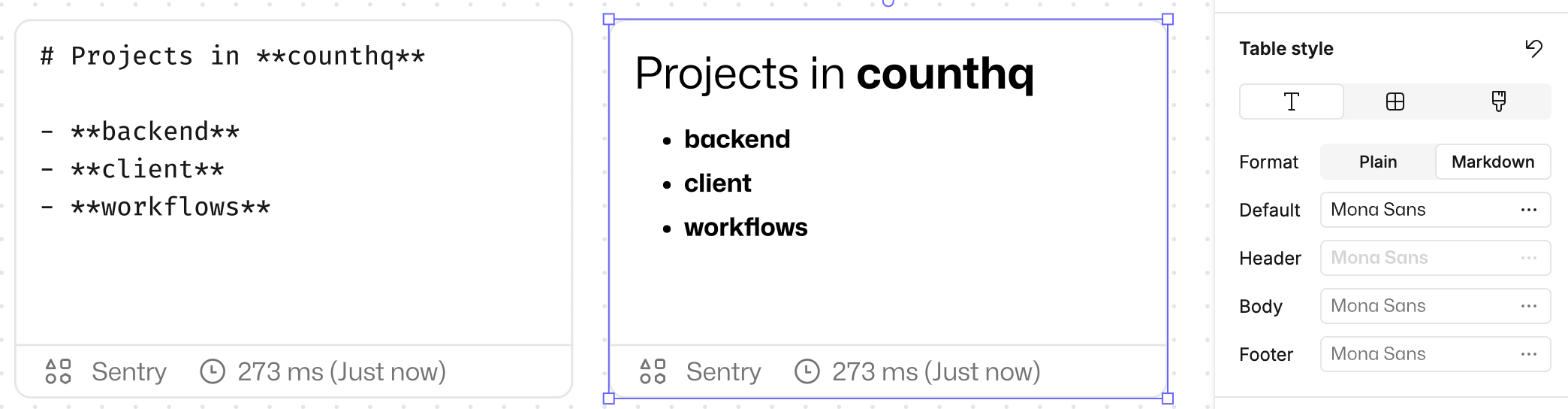
If the MCP cell returns markdown-formatted text, it is possible to view the raw response as formatted rich text by selecting the Markdown format option under Table style in the design bar.
#Non-read-only tools
If a tool has side-effects - i.e. it is not read-only - then it behaves differently in Count:
- MCP cells can only call read-only tools - because cells run automatically most of the time, they are limited to calling tools that have no side-effects.
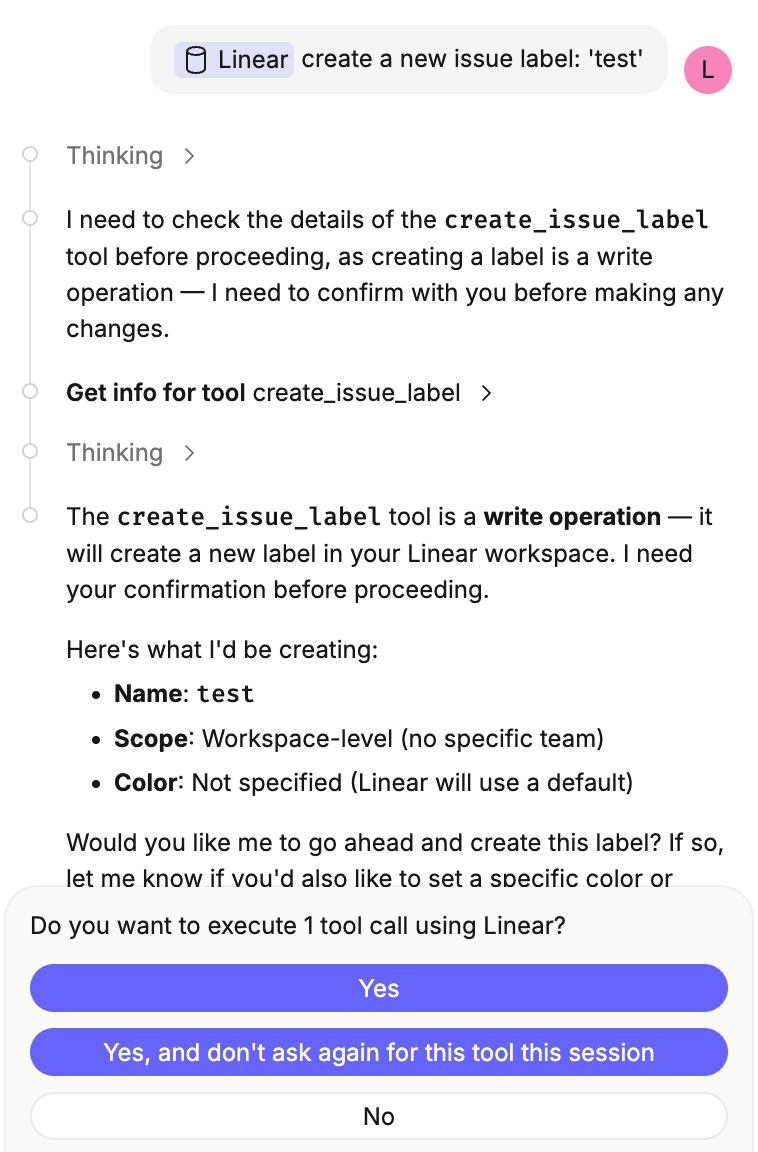
- The agent requires confirmation when calling these tools - it will often ask for verbal permission, and it will always present a permission request prompt before executing these tools, whether invoked from Count, Slack, or an app using the Count MCP server.
Last updated: 03/08/26