Sticky notes
Sticky notes are core to the collaborative and iterative nature of the canvas. They’re lightweight, flexible objects you can use to:
- Brainstorm ideas with your team before starting a piece of work
- Make notes to yourself about why you chose to do an analysis a particular way
- Keep track of an ongoing to-do list
- Sort ideas into groups
- Gather feedback from stakeholders
#Insert a sticky note
- Select the sticky note icon in the toolbar, or press S.
- Then click on the canvas to place it.
- Sticky notes can be moved at any time by clicking and dragging.
#Edit a sticky note
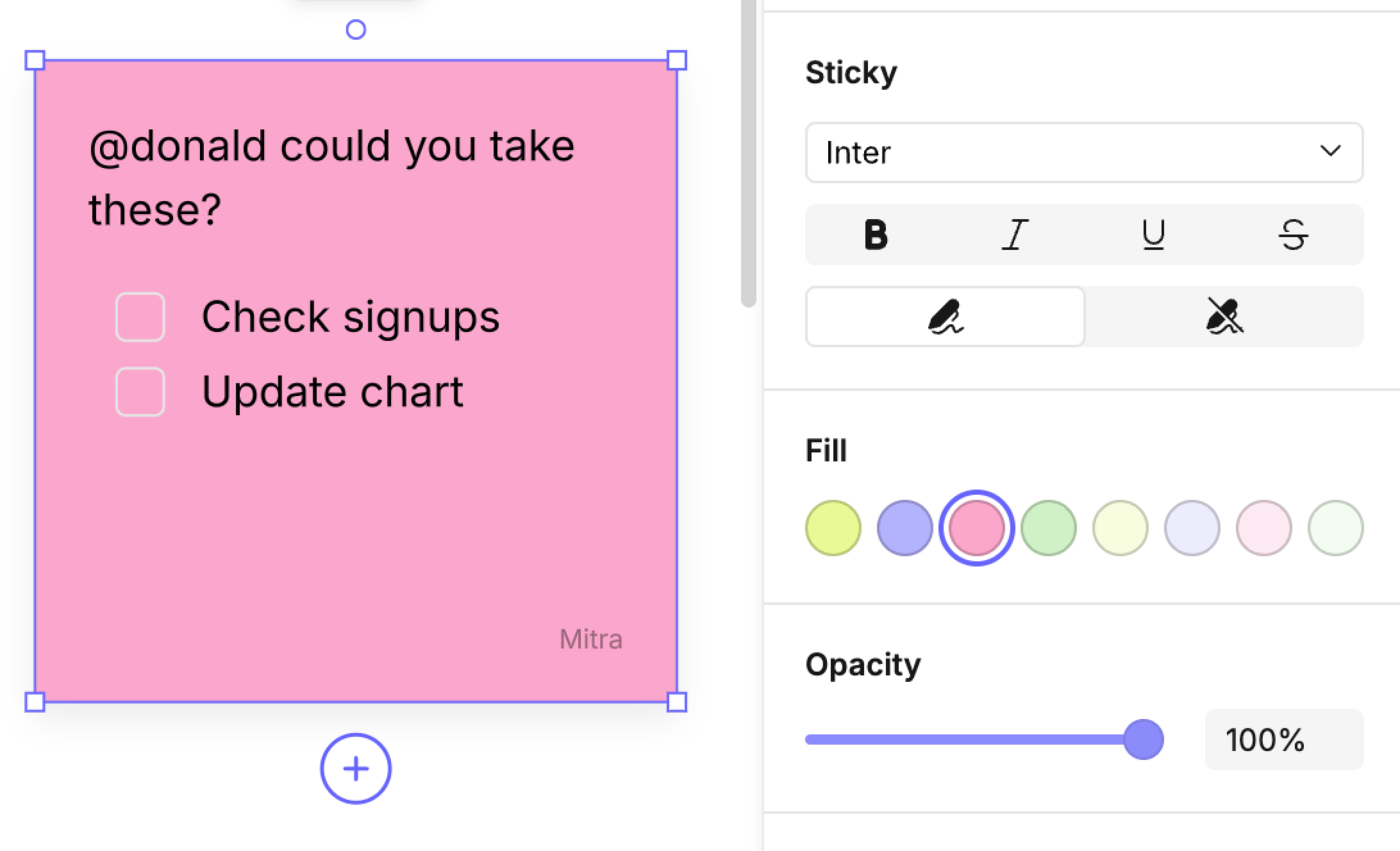
- Add rich text (bold, italics, strikethrough, inline code).
- Use markdown shortcuts (see Text and Markdown for details).
- Change the background color.
- Add emojis to make them more expressive.
Other users can edit sticky notes live, making them perfect for collaborative sessions and workshops.
#Adding your name
By default, the sticky note you create will display your name in the bottom right.
- You can toggle this off to make a note anonymous.
#Resizing sticky notes
Unlike other objects, when you resize a sticky note its content scales proportionally.
Sticky notes are best for brief comments. Consider Shapes or Text Boxes as an alternative if you have a lot to say!
#Deleting a sticky note
Select the sticky note and hit backspace to delete.
Last updated: 03/08/26