Images
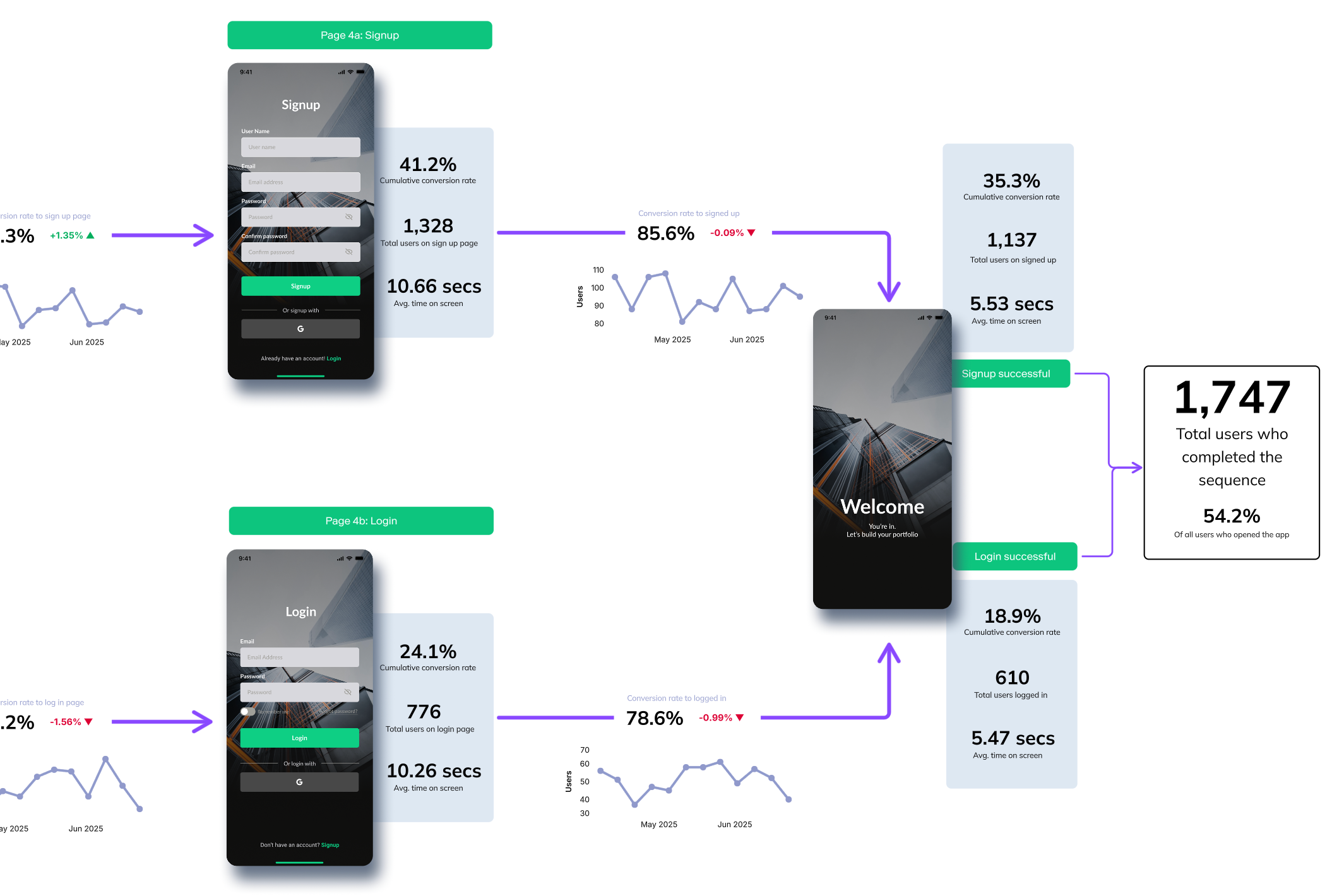
You can add images directly to your canvas to illustrate ideas, provide context, or enrich your analysis.
#Inserting an image
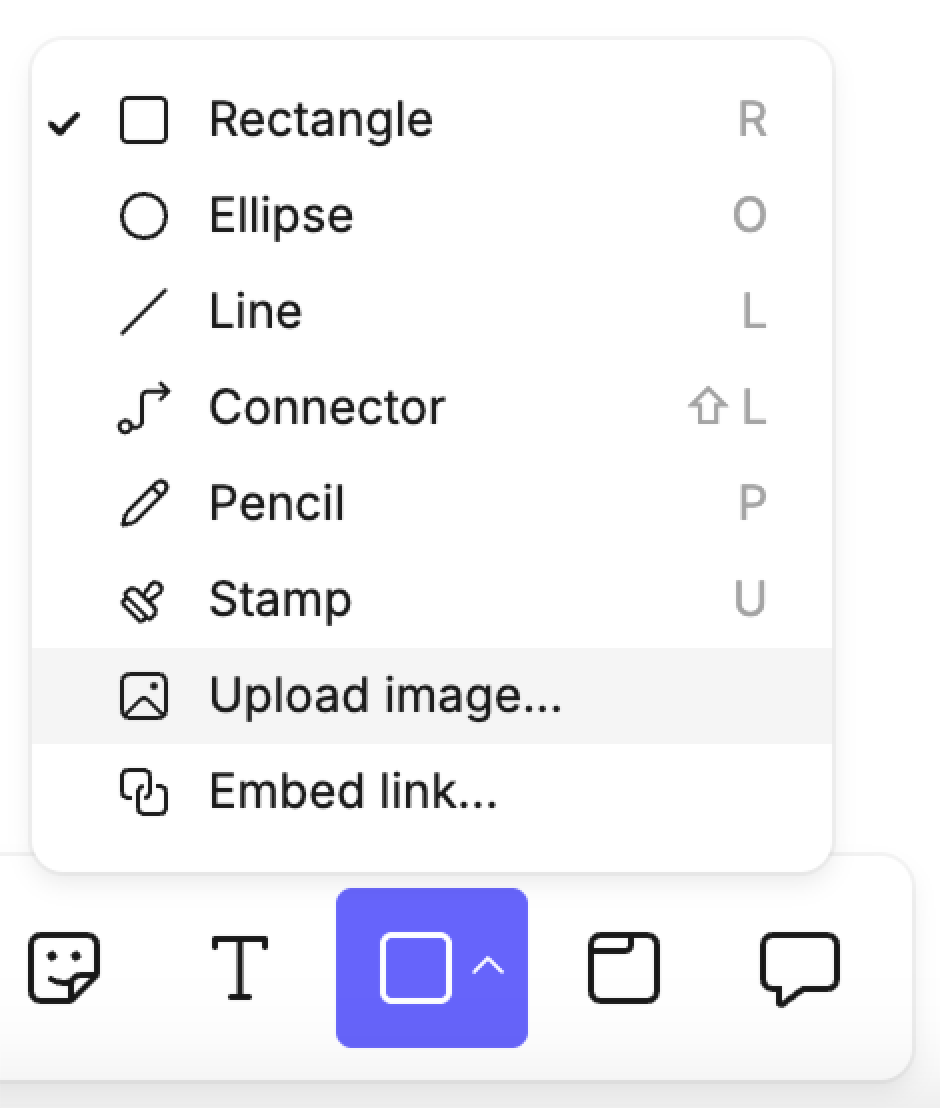
There are several ways to insert an image into the canvas:
- Toolbar menu — Select Upload image… from the shapes menu.
- Paste shortcut — Copy an image to your clipboard and paste it directly (
Cmd + Von Mac /Ctrl + Von Windows). - Drag and drop — Drag an image file from your computer onto the canvas.
Supported formats: GIF, JPEG, PNG, SVG, WebP
Maximum file size: 10MB
#Editing an image
Once inserted, images can be:
- Resized — drag the corners to scale. Hold Shift to maintain the image’s proportions.
- Positioned — use Bring to front / Send to back to adjust layering with other objects.
Last updated: 03/08/26