MCP Server
Overview
The Count Model Context Protocol (MCP) server provides a set of tools that AI apps and agents can use to interact with your Count workspace.
The MCP server is available on Pro plans and above.
Connect
Each workspace has a distinct MCP server URL - to find yours, head to the MCP tab in your workspace settings. The URL should look something like the following, where abc123 is unique for your workspace:
https://mcp.app.count.co/mcp/abc123Add the following to your mcp.json file (where you've replaced abc123 with the correct value):
{
  "mcpServers": {
    "count": {
      "url": "https://mcp.app.count.co/mcp/abc123"
    }
  }
}Add the following to your mcp.json file (where you've replaced abc123 with the correct value):
{
  "servers": {
    "count": {
      "type": "http",
      "url": "https://mcp.app.count.co/mcp/abc123"
    }
  }
}Enter the following command in your terminal (where you've replaced abc123 with the correct value):
claude mcp add --transport http https://mcp.app.count.co/mcp/abc123Step 1 - add a custom connector
This step needs to be performed once per Claude organization.
You need to be a Claude owner
Only Claude organization owners can add custom connectors - if you're not an owner, please ask one of the owners of your organization to add Count.
Once Count has been added as a connector, anyone in the Claude organization can use it.
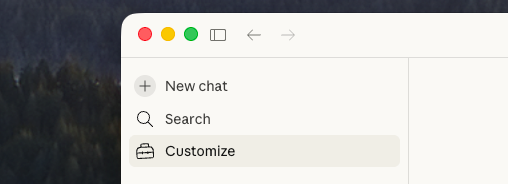
- Head to the Customize tab
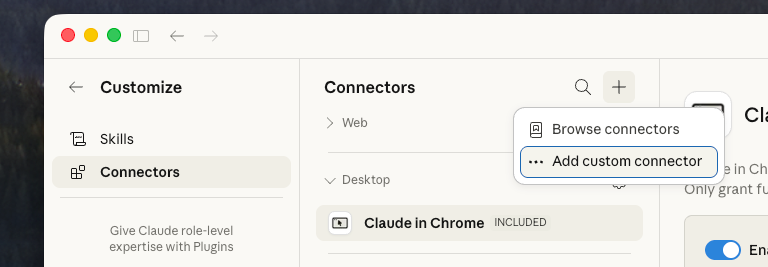
- Click the plus icon, then Add custom connector
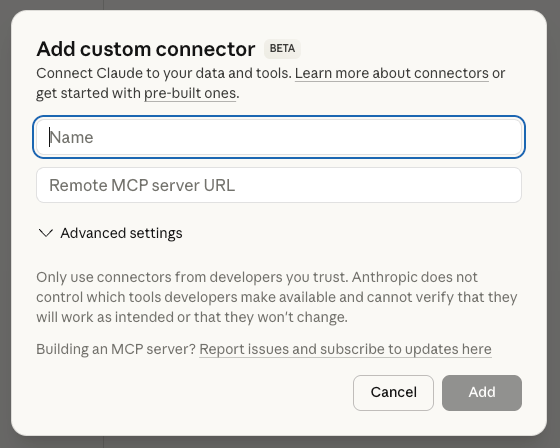
- Enter the URL for the MCP server for your workspace
Step 2 - connect to the Count MCP server
This step needs to be performed by anyone that wants to use the Count MCP server.
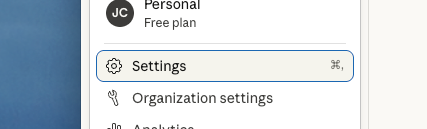
- Head to your Claude Desktop settings
- Choose Connectors
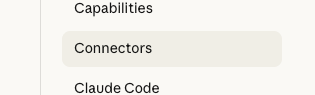
- Find the Count connector and choose Connect

Regardless of the app you're connecting, you'll need to:
- Be at least a member of the workspace (not a guest)
- Be signed into Count
- Connect to a workspace with the MCP feature enabled
The Count MCP server uses OAuth authentication, and once authorised and connected your OAuth client will appear in the MCP tab of your workspace settings:

If an app is not authorised within 24 hours, its OAuth client is deleted and authentication will have to take place again.
After authorisation, apps are authenticated for the next 90 days, after which they'll need to be authorised again.
Using the MCP server
Once connected, your AI agent has the same permissions as you do when interacting with resources in Count. It can:
- Search the workspace
- View workspace resources
- Run queries
- Export CSV files
- Create agents in canvases
See the full list of MCP tools and their functionality in the MCP reference page in your workspace settings.