Automations
An automation is a prompt the agent runs for you on a schedule, in a project. Use one to rebuild Monday's pipeline review before the meeting, check a metric every morning, or write up last month's numbers on the first of the month. Each run can update an existing canvas or create a new one, and send the result to people by email or Slack.
#Creating an automation
- Open the project and select Automations in the side panel.
- Select New automation.
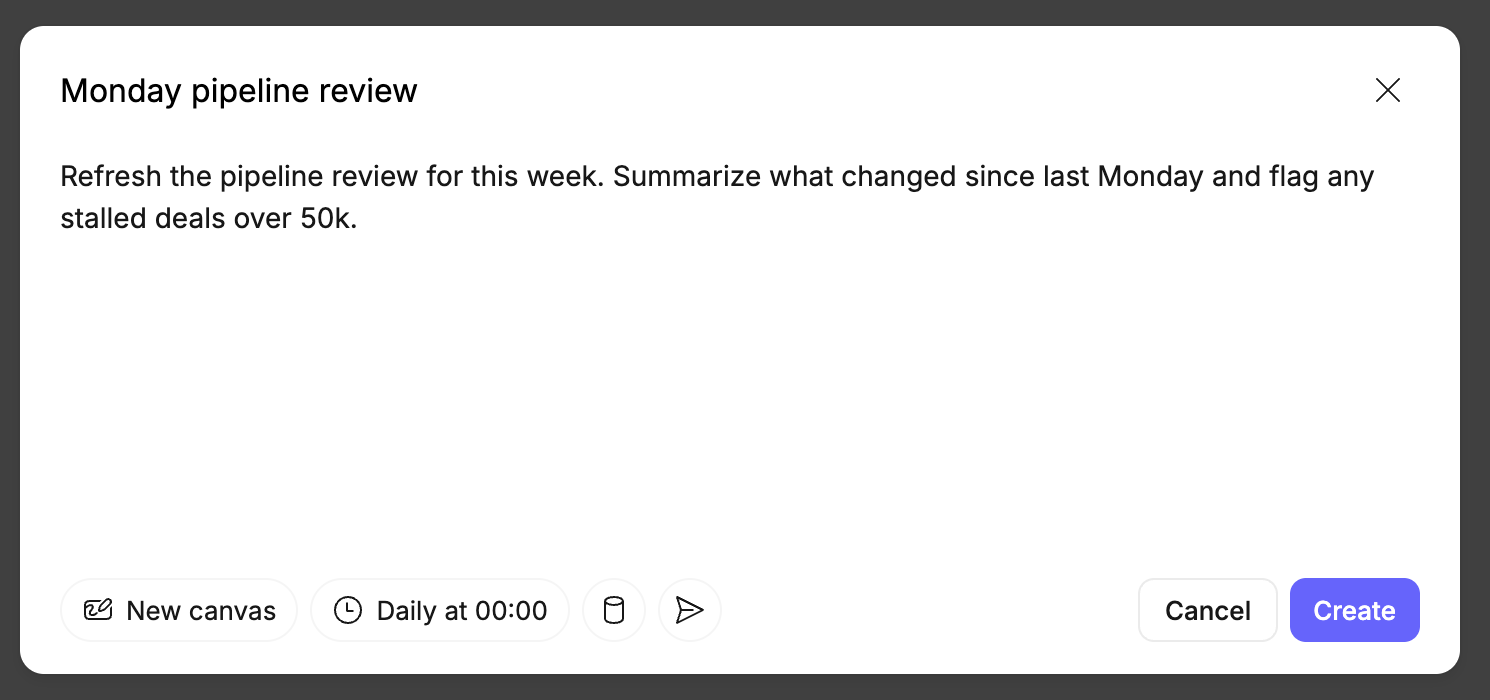
- Give it a title and write the prompt the agent should run.
- Choose where it runs, when it runs, its data sources and who gets the result, then select Create.
#Where it runs
- Create new canvas starts a fresh canvas every run, optionally in a folder.
- Reuse existing canvas runs on the same canvas each time, so it stays up to date. The canvas can't be a template or locked.
- Duplicate canvas copies a canvas each run and works on the copy, so you keep a history of past runs.
The agent can see the results of previous runs, so a prompt like "summarize what changed since last week" works.
#Schedule
Choose Hourly, Daily, Weekly, Monthly or Custom (a cron expression). Times show in your time zone. Automations run at most once an hour.
#Data sources
Add the connections and catalogs the automation needs. Adding them grants the agent permission to query them, so runs don't stop to ask. If a run needs a connection that isn't listed, it stops and says so.
#Subscribers
Add workspace members, their email addresses or Slack channels. The agent sends them a message when it has something to report, and can attach a picture of the canvas. Slack needs setting up first, see Slack integration.
#Managing automations
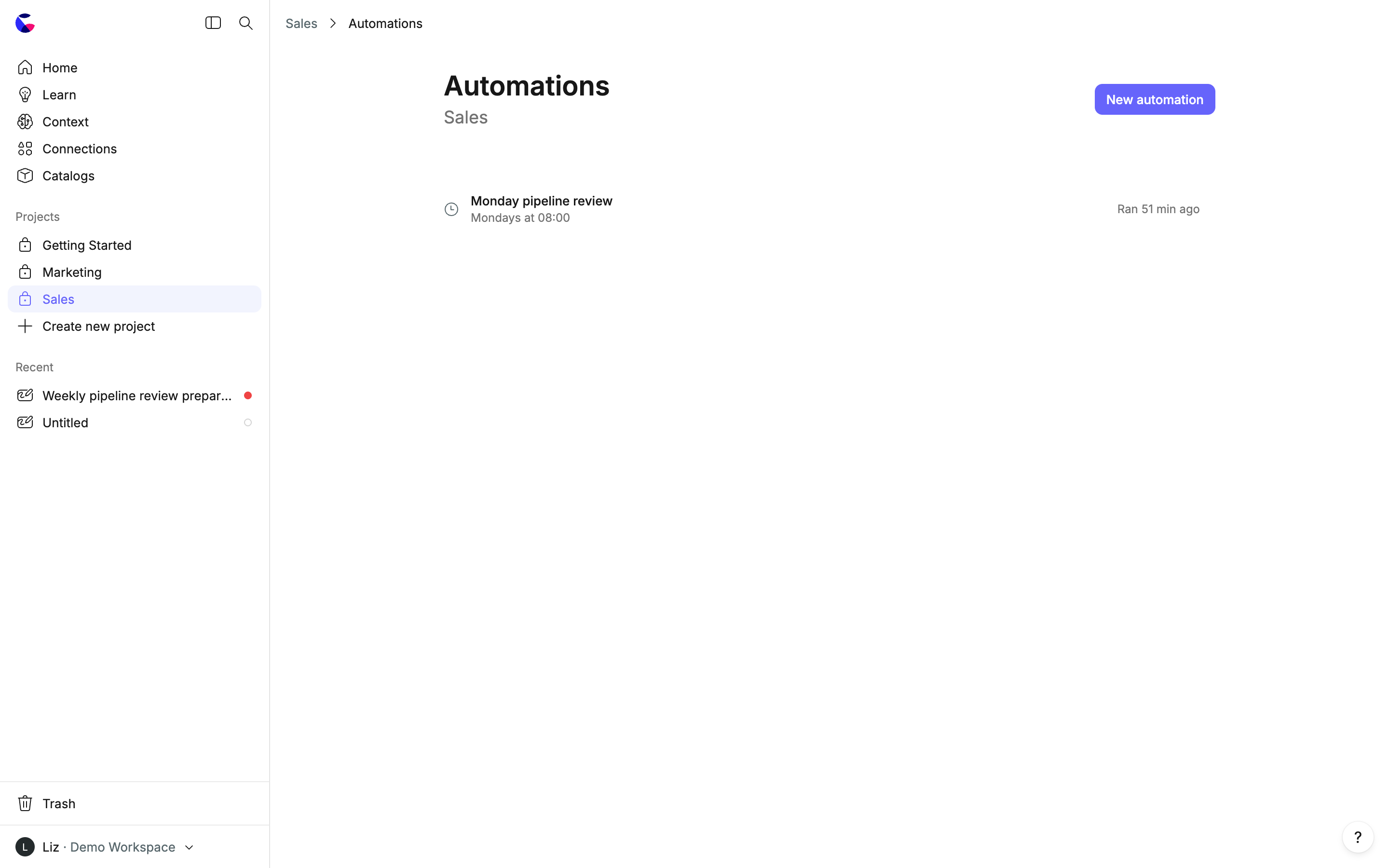
The Automations page lists every automation in the project, with its schedule and when it last ran.
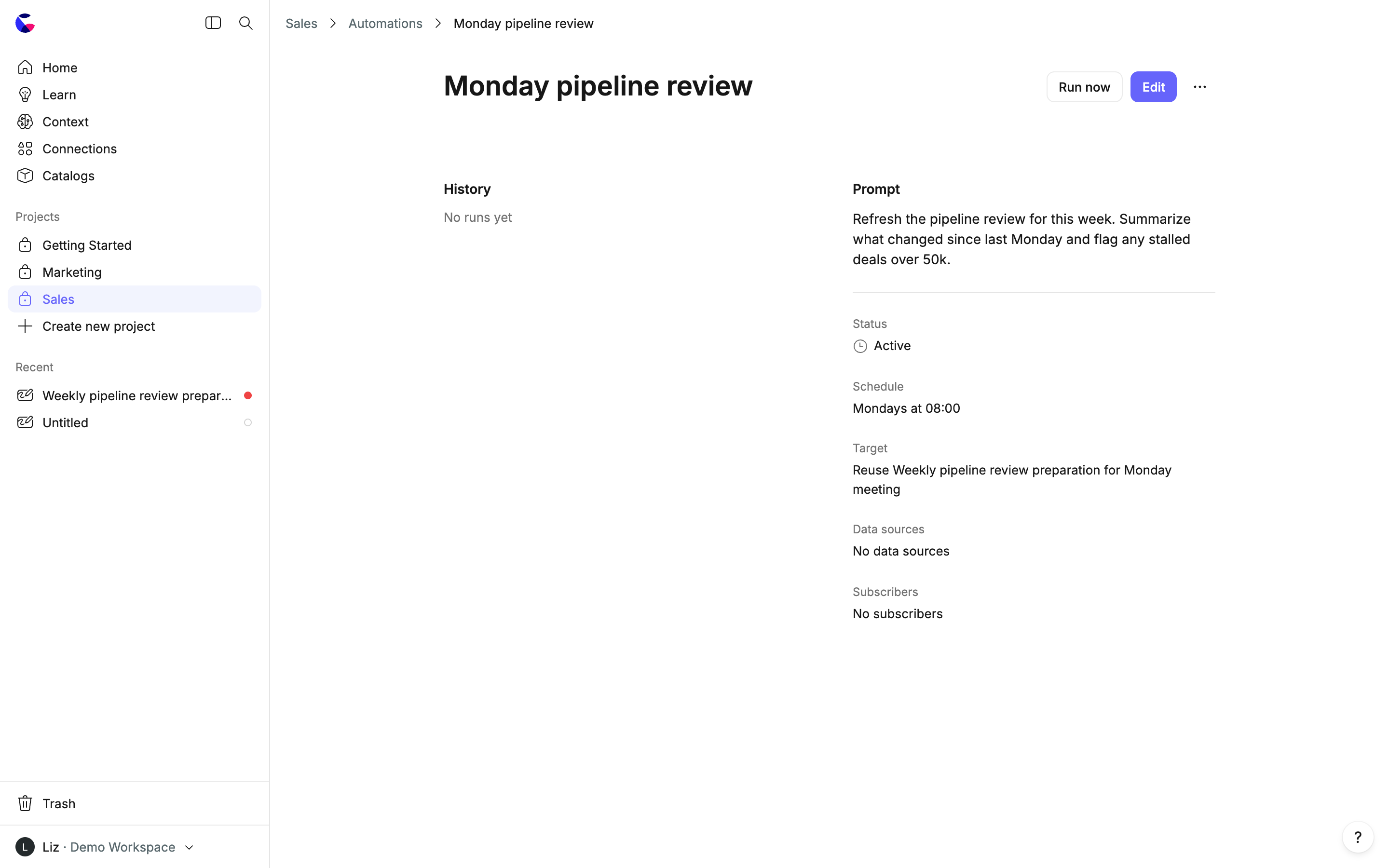
Select an automation to see its details and run history. From here you can:
- Run now to run it straight away.
- Edit its prompt, schedule, target, data sources or subscribers.
- Pause or Resume it, or Delete it, from the ⋯ menu.
Scheduled runs run as the person who created the automation. Run now runs as you. If a run fails for a reason that won't fix itself, such as a deleted canvas or a missing connection, the automation is paused until someone resumes it.
#Who can use automations
Project admins and analysts can see, create and manage a project's automations. The workspace needs AI turned on.
#Automations via the API and MCP
Automations can be created, listed, updated, run and deleted with the public API, under /projects/:project_key/automations.
The Count MCP server has list-automations, get-automation, create-automation, update-automation and run-automation tools. There's no tool for deleting an automation, so pause it with update-automation instead. Creating, updating and running need the mcp:write and mcp:query scopes, and the tools only work on projects in the workspace the MCP client is connected to.
As in Count, the connections you add as data sources are approved for every run. The MCP tools can't approve anything else ahead of time, so a run that needs another permission stops until someone approves it in Count.
Last updated: 27/11/26