Reasoning Chains
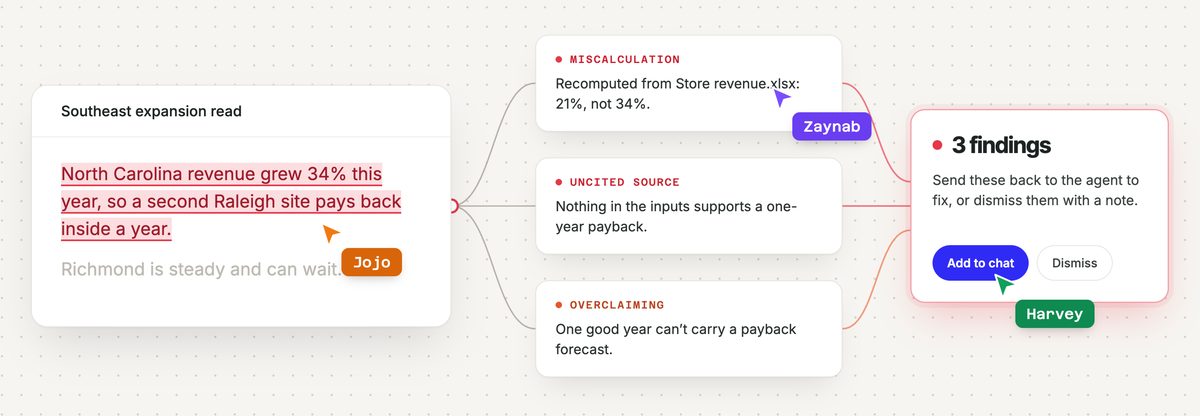
The agent shows its work on the canvas, but a long analysis is a lot to check by hand. Reasoning Chains trace each claim back to the data and sources behind it. Review gives every answer a second opinion and flags what deserves a closer look. Together, they let you check an answer before you share it or act on it.
#Reasoning Chains
When the agent writes on the canvas, it cites what each sentence rests on: the cells it ran, the sources it read and the assumptions it made. Reasoning Chains let you follow any claim back to where it came from, so you can check an answer before you act on it.
#Spotting cited text
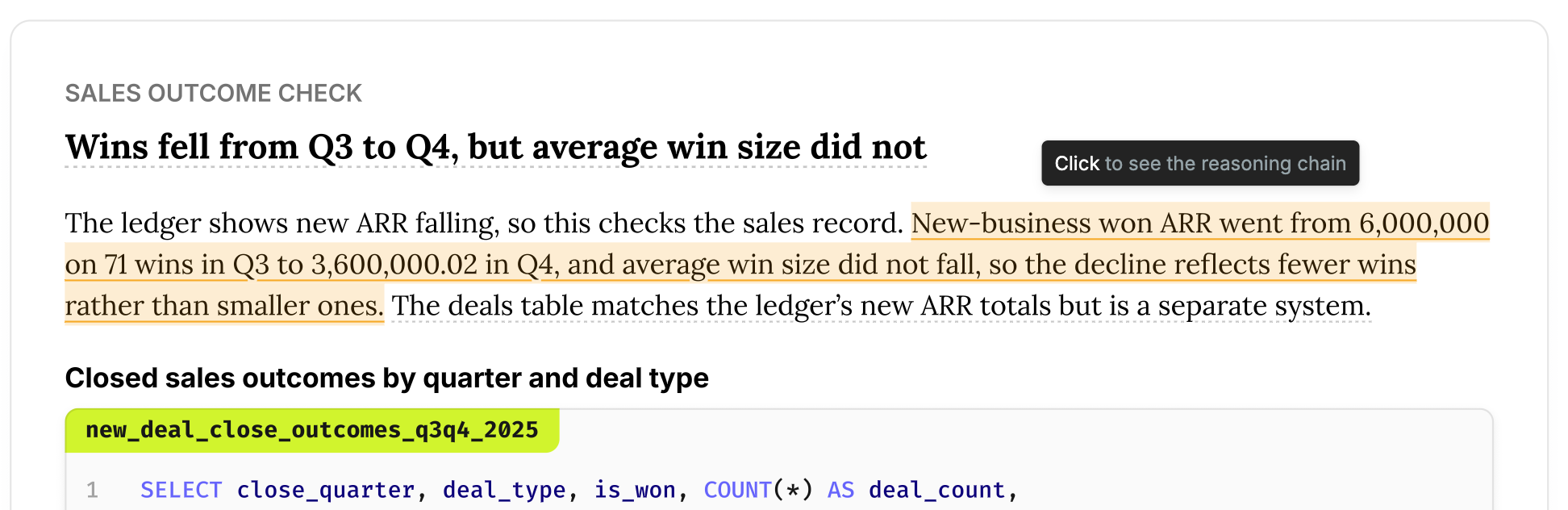
Cited text has a faint dashed underline. Hover over it to highlight the claim in its type's color. Text the agent couldn't back up stays highlighted in red even when you're not hovering.
#Opening a reasoning chain
| From | How |
|---|---|
| Text on the canvas | Hover cited text and click (the tooltip reads "Click to show reasoning chain") |
| A cell | Select it and click Show reasoning chain, or press Ctrl/Cmd + Enter |
| Chat | Click an underlined phrase in an agent reply |
| Left sidebar | Open the Reasoning Chains tab and click any issue, assumption or source |
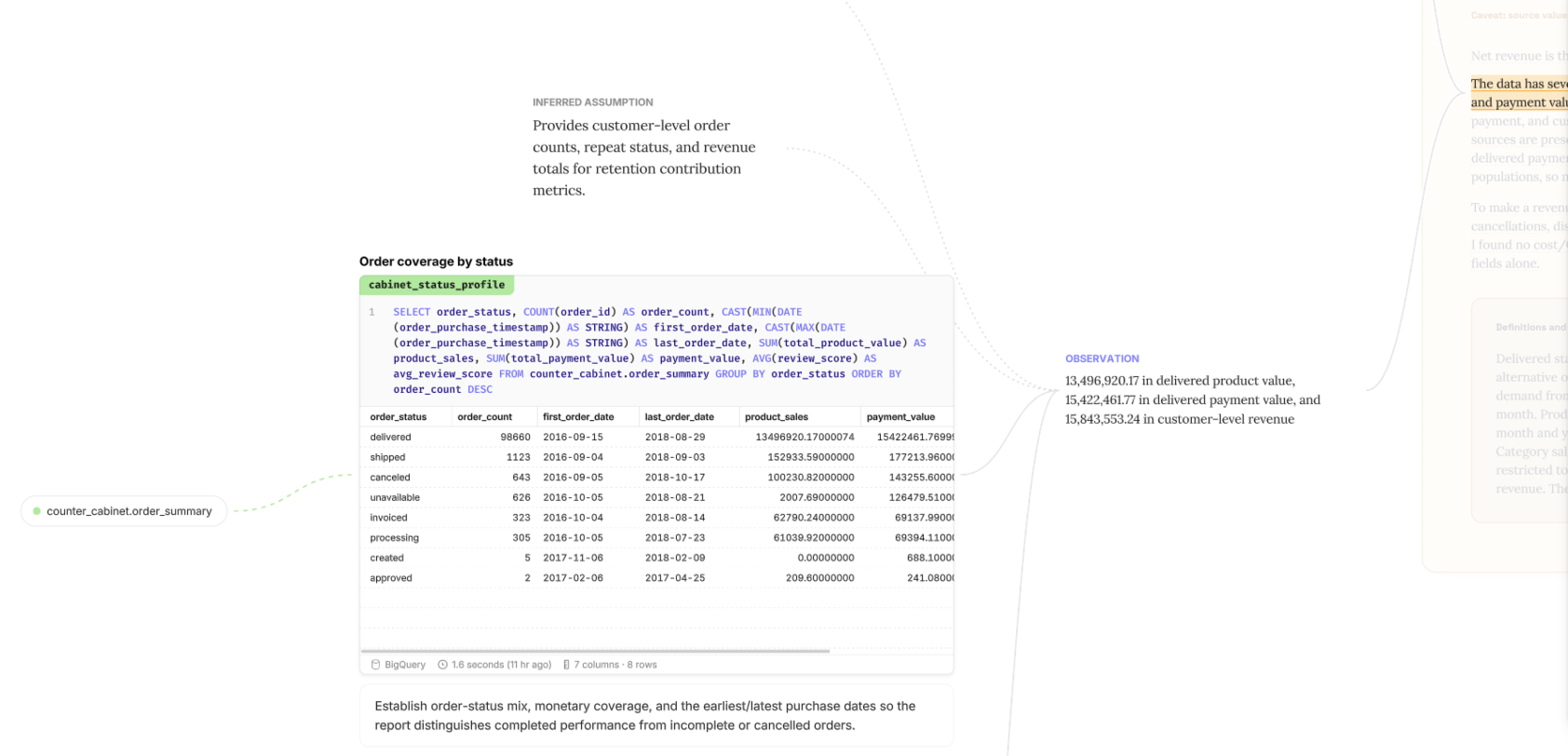
While a reasoning chain is open, the canvas fades back. The chain appears as a graph of the claim and everything behind it, with an inspector panel beside it.
#Reading the graph
The claim you opened sits at the root. Below it is everything it rests on:
- Cells that produced the figures. Each step has a caption with the agent's stated purpose for that cell.
- Source excerpts, the exact passages quoted from a web page, search result, message or run.
- Data sources and the tables each cell used.
- Inferred assumptions and inferred reasoning that connect the steps.
Click any node to inspect it. Clicking selects a node without re-centering the graph. To make the selected item the new root, click Center graph. When something relevant lives in another part of the canvas, the inspector lists it under Not in this graph; click it to open its own reasoning chain. A back row at the top takes you to where you were.
#Claim types
| Type | Color | What it means |
|---|---|---|
| Observation | Blue | Read directly from data or a source |
| Judgment | Amber | The agent's interpretation of the evidence |
| Assumption | Gray | Taken as given, not shown |
| Model knowledge | Red | From the model's own training, with nothing on the canvas behind it |
Pending claims
Right after the agent finishes, some claims may briefly show Pending while Count finishes classifying them.
#When a claim has a problem
If something behind a claim is wrong, a red box appears in the inspector under the claim. It lists each problem with a one-line explanation:
| Problem | What you'll see |
|---|---|
| Missing support | What's missing, for example "A quote or figure it cites is no longer kept." |
| Changed figure | The figure and its new value, for example "$3.9M (Revenue) in Q3 totals now reads $4.2M." |
| Changed calculation | A figure's calculation has changed since it was read. |
Two problems show elsewhere instead of in the box. A claim with nothing behind it carries a red Model knowledge label. Evidence that cuts against a claim is listed in red under Against.
For problems in the analysis itself, such as a wrong calculation or a conclusion that goes too far, see Review below.
#Asking about a claim
Type a question in the box at the bottom of the inspector ("Ask the agent about this claim…") and press Enter. The message goes to chat with a chip that links back to the claim.
#Editing cited text
Cited text stays fully editable. If you rewrite or delete the words, the claim is hidden. Undo your change and it comes back. Copying and pasting text keeps its citations.
#The Reasoning Chains tab
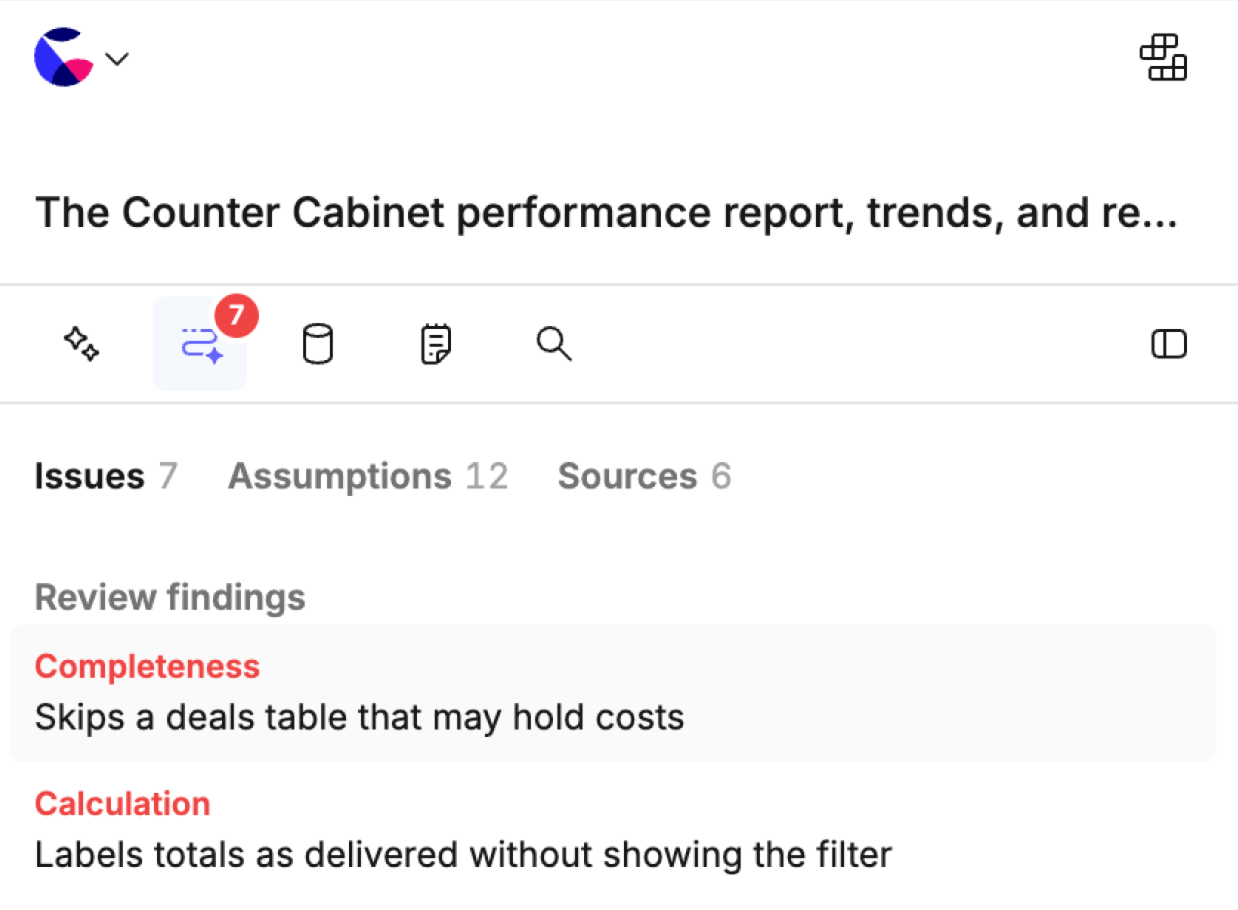
The Reasoning Chains tab in the left sidebar has a red badge showing how many items need attention. It has three views:
| View | What it lists |
|---|---|
| Issues | Review findings (see Review below), plus evidence problems such as changed figures, conflicting evidence and model knowledge |
| Assumptions | Every assumption the agent made, and how many claims use each one |
| Sources | Everything the agent cited |
#Shortcuts
| Action | Shortcut |
|---|---|
| Open the reasoning chain for the selected cell | Ctrl/Cmd + Enter |
| Move between nodes | Arrow keys |
| Back to the previous graph | Ctrl/Cmd + ← |
| Step back / close the reasoning chain | Esc |
You can also close the reasoning chain with Back to canvas in the top bar ("Back to report" or "Back to slides" in a report).
#Review
After the agent answers an analytical question, a separate model reviews its work. It checks the calculations, the reasoning and whether the answer addresses what you asked. Anything it finds appears next to the claim it affects, in its reasoning chain.
#When review runs
Review runs automatically in the background after each agent turn that writes analysis to the canvas. Layout changes and short chat replies aren't reviewed. Each review raises up to five findings.
#The review receipt
Each reviewed turn shows a receipt in chat, next to Undo:
- Reviewing while it runs
- Reviewed · 3 findings or Reviewed · no findings when it's done
- Review didn't finish if it fails
Click the receipt to see that turn's findings in the Reasoning Chains tab.
#Acting on findings
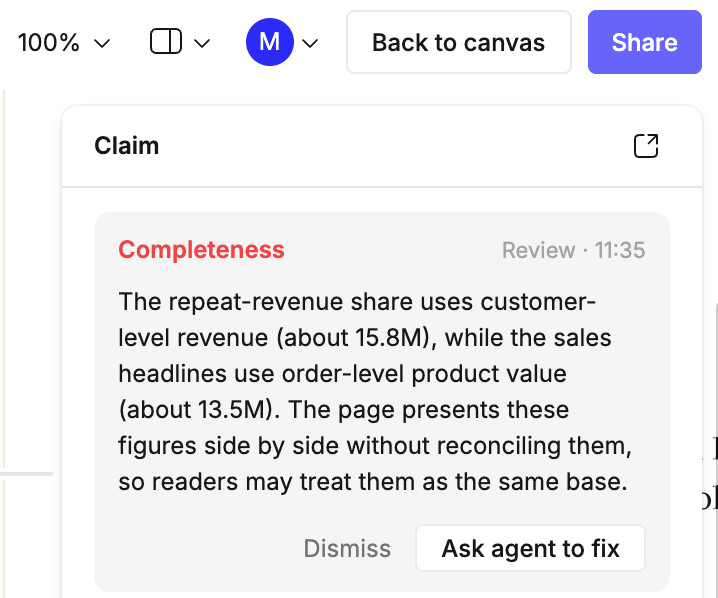
Findings are listed in the Issues view of the Reasoning Chains tab. Click one to open it at the claim it's about. From there you can:
- Ask agent to fix: sends the finding to the conversation that produced it
- Dismiss: removes it from the list
To fix several at once, use Ask agent to fix all at the bottom of the tab, or Select issues to choose specific ones.
Who sees reviews
Reviews are only visible to canvas editors.
#What review looks for
Review looks for problems that would change what you conclude or do. It reads the queries the agent ran and the results it got back, not just the text on the canvas. Each finding falls into one of six categories:
| Category | What it catches | For example |
|---|---|---|
| Relevance | The answer addresses a different or narrower question than the one you asked, or quietly swaps in something nearby that it could get | Asked for churn, answered with cancellations |
| Calculation | The figures are wrong: the data doesn't measure what the sentence says, a query computes the wrong thing, or a result is misread | A wrong join, filter or denominator; a partial month counted as a full one; duplicates or nulls left in |
| Reasoning | The conclusion goes further than the evidence | A cause claimed from a correlation, an unfair comparison, a big claim from small numbers, an obvious alternative never ruled out |
| Completeness | Relevant evidence was left out | A result that cut against the conclusion, a date range or segment that looks picked to fit, figures that contradict each other |
| Execution | The answer reports work that didn't happen or didn't succeed | Saying a figure was "validated" when the check failed |
| Presentation | How the answer is shown misleads | A truncated axis, a chart that implies more than the data shows, the answer buried |
The most important findings come first: the ones the headline depends on. Each one has a short summary and a plain sentence on what's wrong.
#What review doesn't flag
- Style or wording
- Unsourced facts and unstated assumptions, unless they would change the result. Reasoning chains already mark these: model knowledge in red, assumptions in the Assumptions view.
If the work is sound, review returns no findings.
Want to learn more about Reasoning Chains? Read our blog post here.
Last updated: 26/10/26