Skills
A skill is a named set of instructions, with any supporting files, that the agent can load on demand. The agent always sees each skill's name and description. It only reads the rest of the skill when it decides the skill fits the task.
That makes skills the right place for longer procedures that only apply to some questions, like how to run the weekly pipeline review or how to lay out a board report. Keep short rules that should always apply, like currency or fiscal yea.
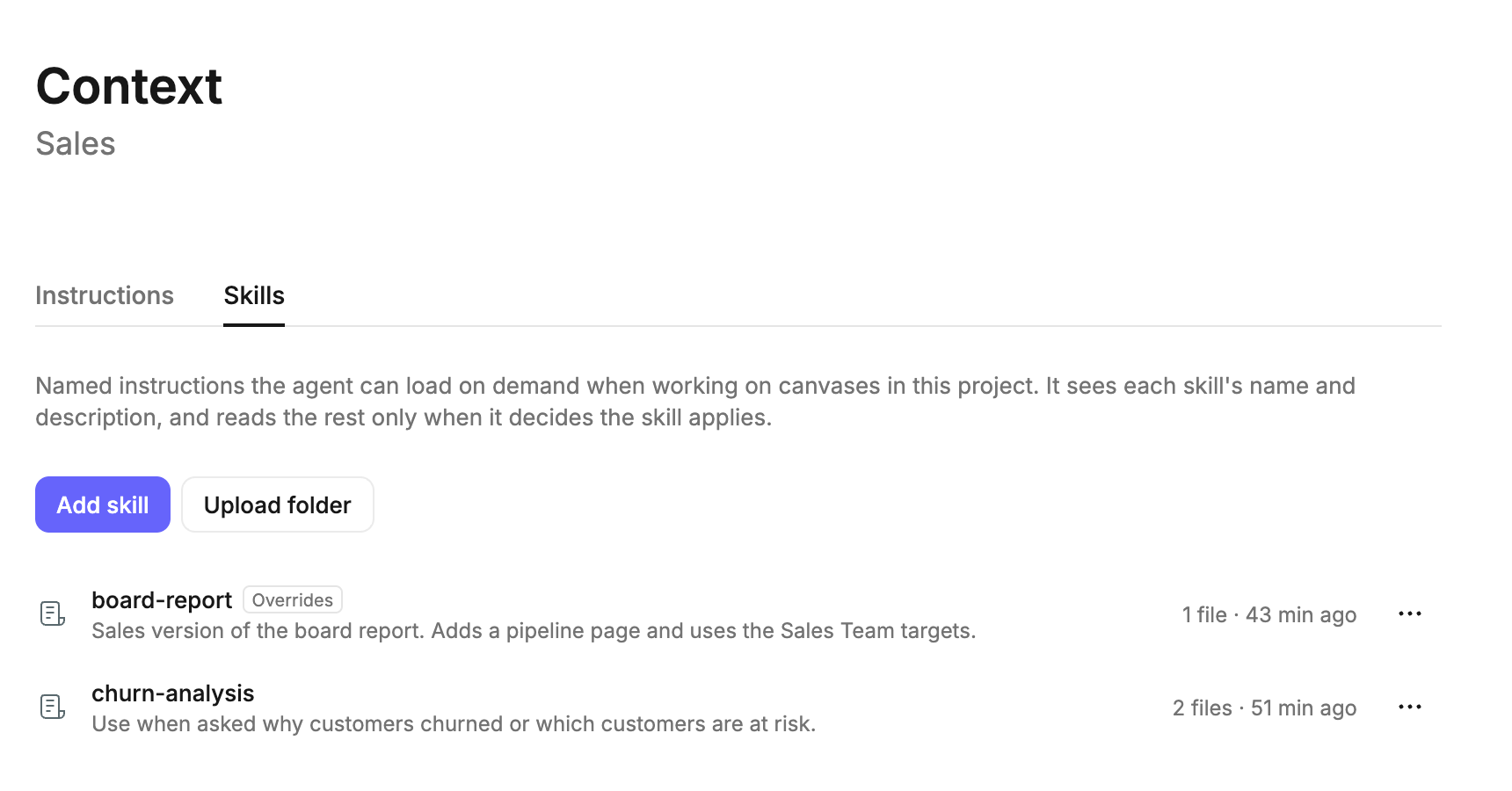
#Where skills live
Skills sit alongside instructions at each level of context:
- Workspace skills are available on every canvas in the workspace.
- Connection skills are available on any canvas that uses that connection.
- Project skills are available on canvases in that project.
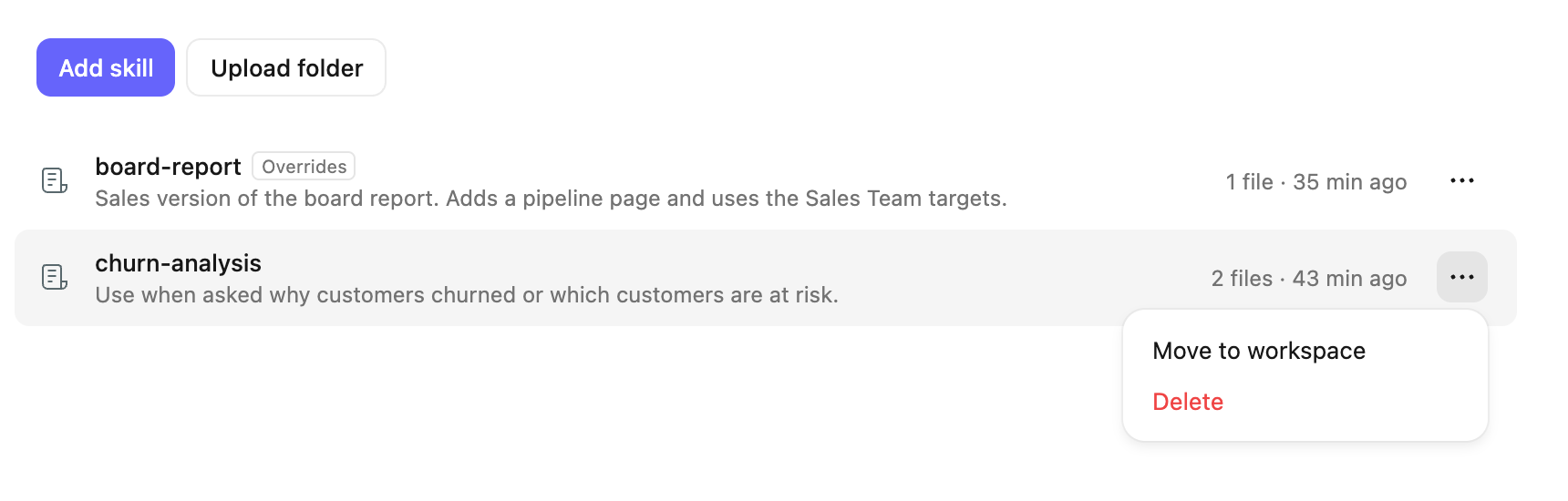
If two skills share a name, the nearest one wins: project, then connection, then workspace. A skill that replaces one further out shows an Overrides label.
#How the agent uses skills
When a question matches a skill's description, the agent loads it, then loads any of its files it needs. You can see this in the agent's activity in the canvas.
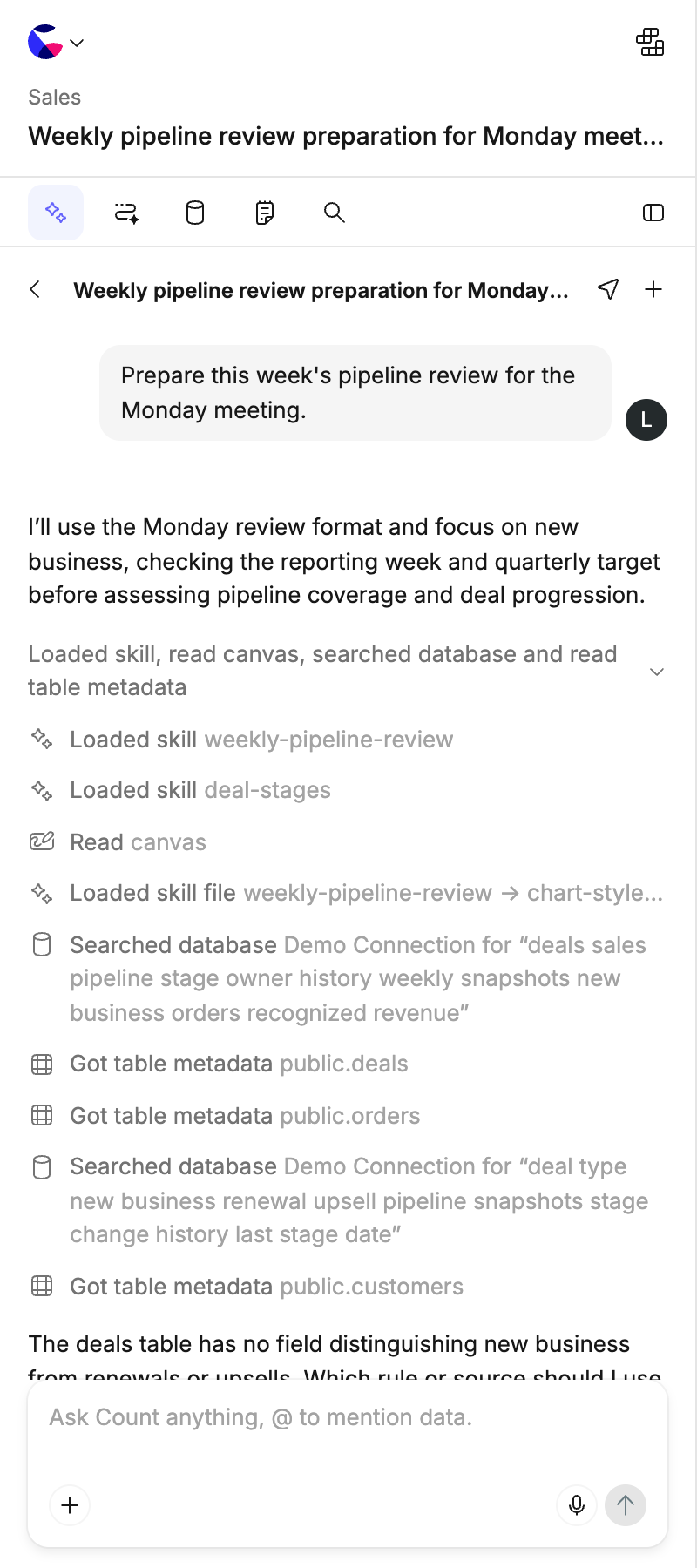
The description is what the agent matches on, so write it as a trigger: "Use when asked to review the sales pipeline, deal progression or progress against quarterly targets."
#Adding a skill
- Open the Context page for the workspace, connection or project.
- Select the Skills tab, then Add skill.
- Give the skill a name and a description, and write its instructions in
SKILL.md. - Add more files with New file or Upload, then select Add skill.
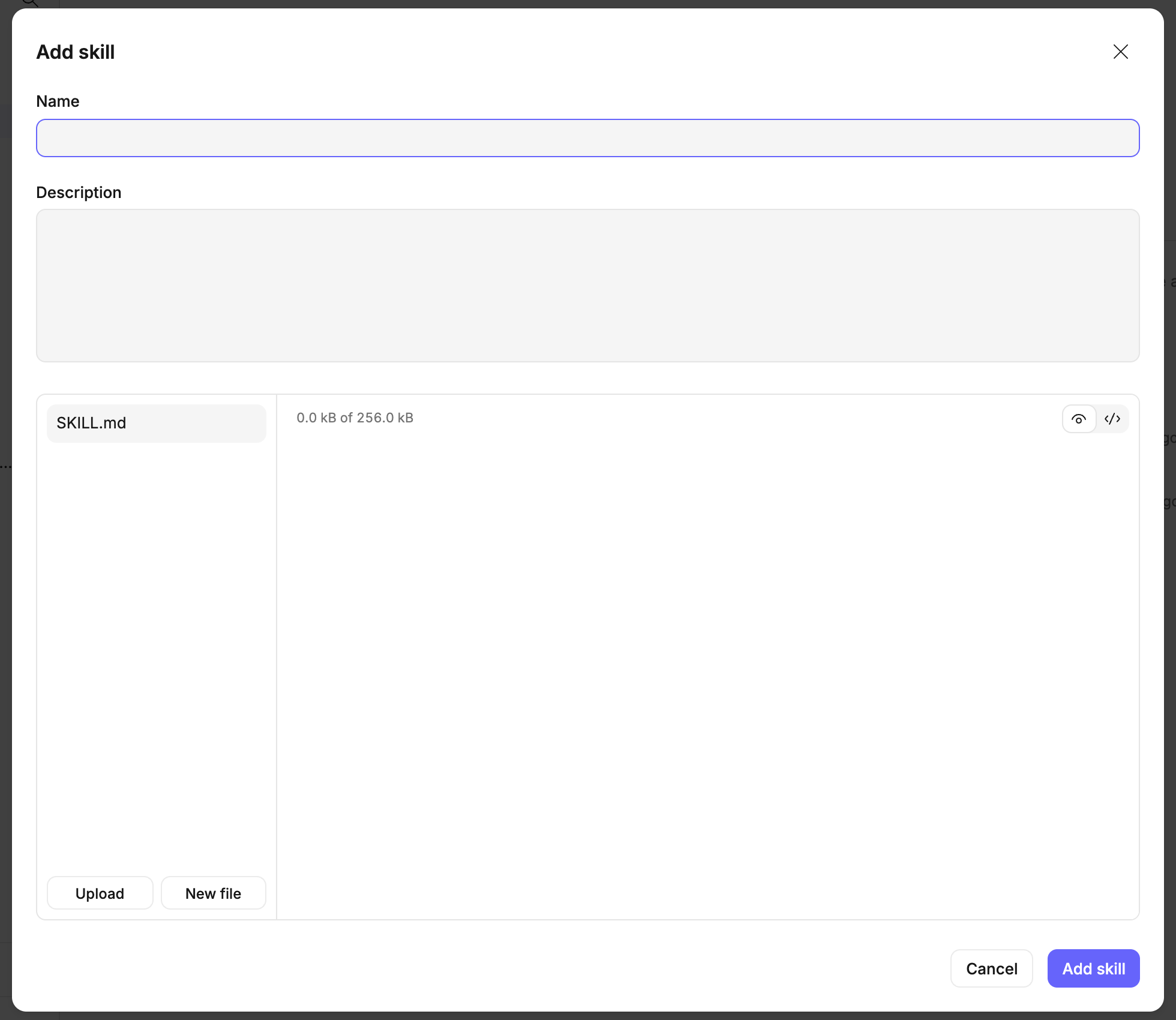
Link to other files in the skill from SKILL.md with a normal markdown link, like [chart-style.md](chart-style.md). The editor warns you if a link points to a file that isn't in the skill.
#Uploading a skill folder
If you already keep skills as files, select Upload folder and pick the skill's folder. It needs a SKILL.md at the top level that starts with a frontmatter block:
---
name: board-report
description: Use when building a monthly board report. Covers layout, the metrics to include and how to write the commentary.
---

# Board report

Lay the report out as one page per area: Revenue, Pipeline, Customers.
.DS_Store files and .git folders are skipped. This is the same layout other agent tools use, so a skill folder can be shared between them.
#Editing a skill
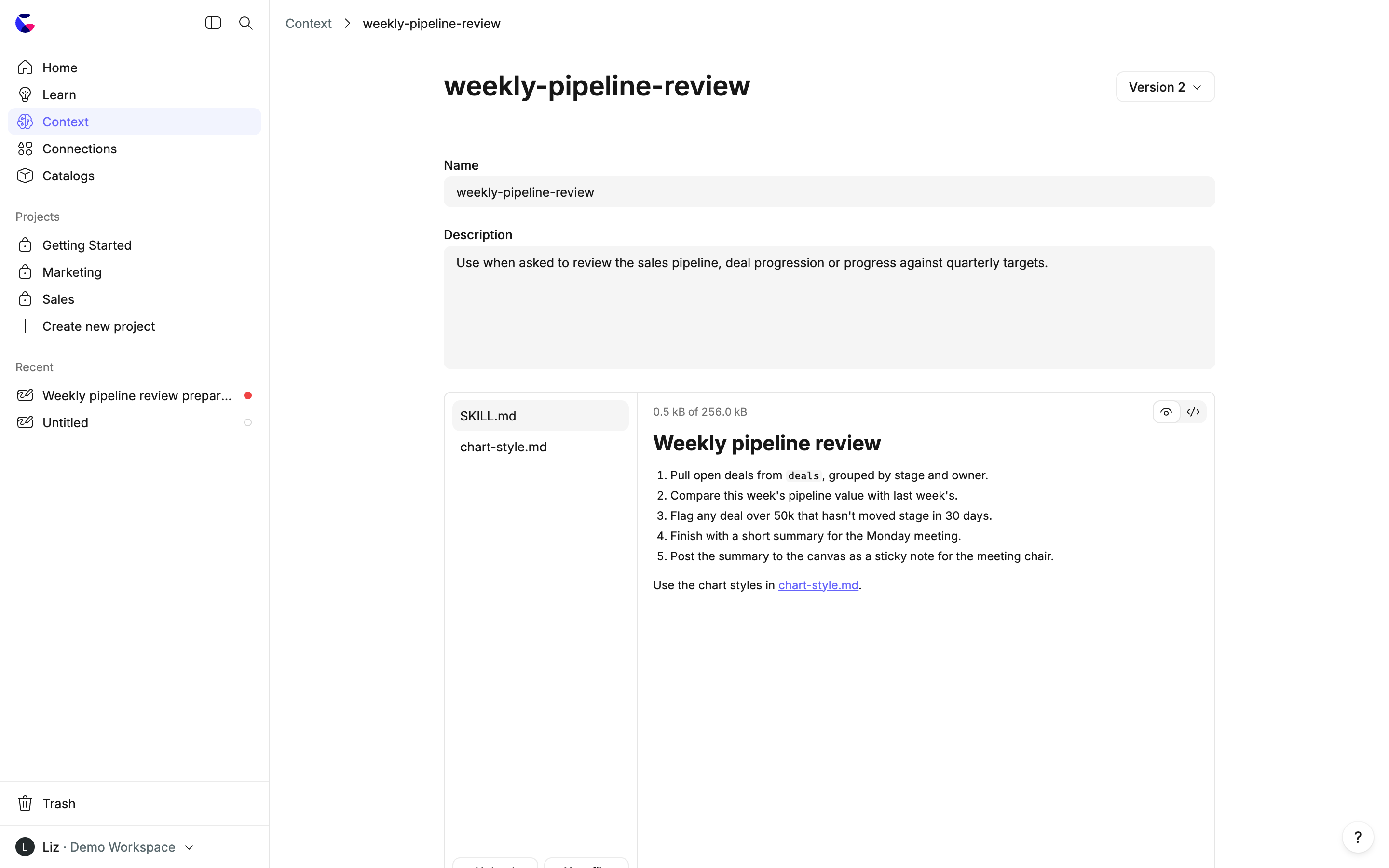
Select a skill in the list to open it. You can change its name and description, edit or add files, then select Save.
#Version history
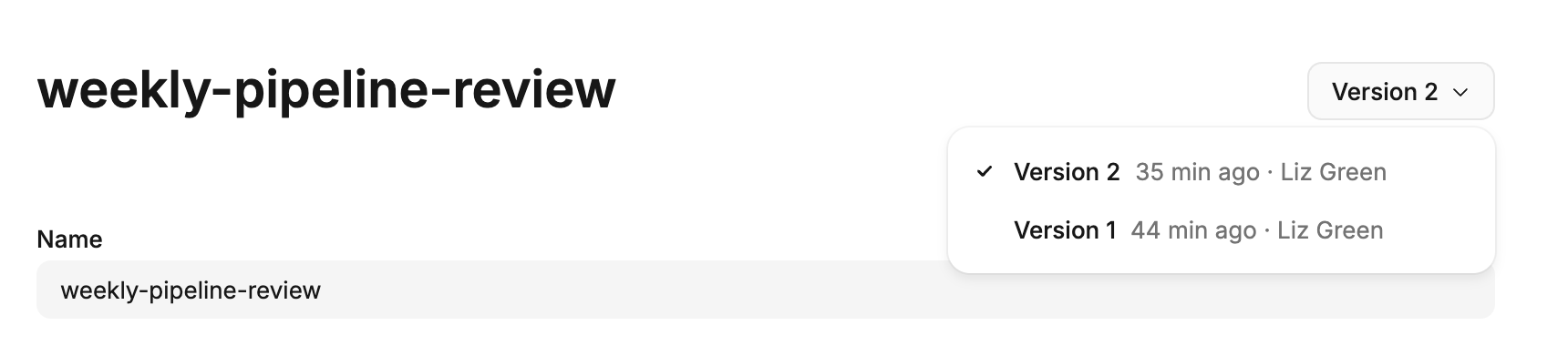
Every save creates a new version. Use the version menu at the top right to see who changed the skill and when. Opening an older version shows it read-only. Select Restore to load it into the editor, then Save to make it the current version.
#Moving a skill to the workspace
A skill that started in one project or connection can be shared with the whole workspace. Open its ⋯ menu and select Move to workspace. If the workspace already has a skill with that name, the moved skill gets a number added to its name.
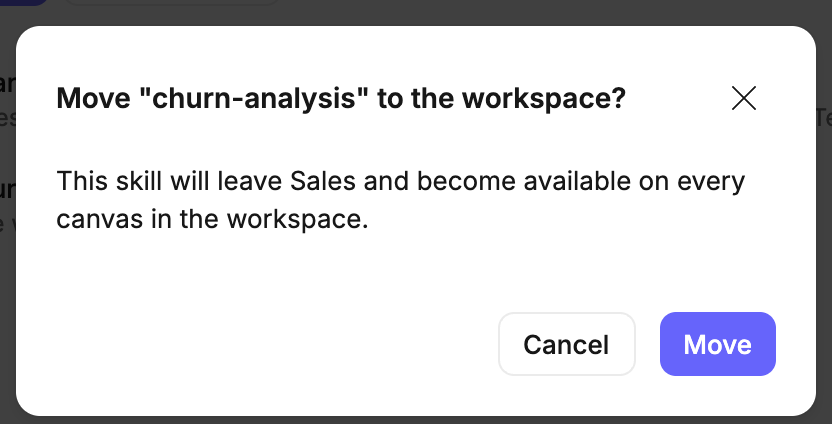
This is a good way to test a skill: build it in a project, refine it there, then move it up once it works.
#Deleting a skill
Select Delete from the skill's ⋯ menu. The agent can no longer load it, and all of its files are removed. This can't be undone.
#Who can manage skills
| Level | Who can edit instructions and skills |
|---|---|
| Workspace | Workspace owners and admins. Analysts can view them. |
| Connection | Anyone who can edit the connection |
| Project | Project admins |
Moving a skill to the workspace needs a workspace owner or admin who can also edit the skill where it is now.
#Limits
- Names up to 64 characters, unique within each level. Descriptions up to 1,024 characters. The agent sees the first 300 characters of each description, so put the trigger first.
- Up to 50 files per skill, each up to 256 kB. Text files only.
- File paths up to 200 characters and 4 folders deep, using letters, numbers,
.,_and-. - Up to 200 skills at each level.
#Managing skills via the API and MCP
Skills can be read and written with the public API and the Count MCP server, alongside instructions. See Managing Agent Context via API.
Last updated: 27/11/26